
Display Troubleshooting
Note: The error message SORRY THIS TERM IS NOT ABLE TO HANDLE ANY TRANSACTIONS may appear when the cash box is full or has a jam: troubleshoot the cash box.
"Games Unavailable" Message
- Run a Device Status Report to determine if troubleshooting should be completed for the Bill Acceptor, Cash Box, Printer, or Communications.
To run the Device Status Report:
-
-
-
-
On the Main Menu, select Tools and Functions.
-
Select Device Status and the screen will display the Device Status Report.
-
Troubleshoot the device(s) showing Offline.
-
-
-
"Terminal is Disabled" Message
If the display screen has the message Terminal is Disabled, Sorry for the Inconvenience, complete the following steps:
-
Open the Gemini door.
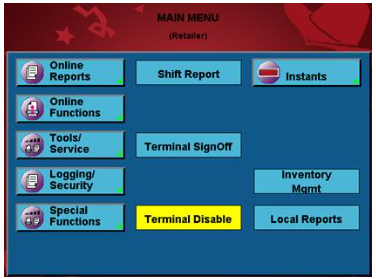
- Check the enable button on the touch screen. Select the green "Terminal Enable" to change it to a yellow "Terminal Disable" for terminal to function properly.
Terminal Disable - Yellow (terminal will work).
Terminal Enable – Green (terminal will not work).
-
Close the Gemini door.
Contact Brightstar for help or additional troubleshooting:
- Select the chat icon in the bottom right corner of this screen and type in Hello to get started.
OR
- Call the Hotline at 1-800-729-4832.