
Printer Troubleshooting
Note: The paper stock in the Gemini can be substituted with the paper stock used by the GT1200/GT1200c printer.
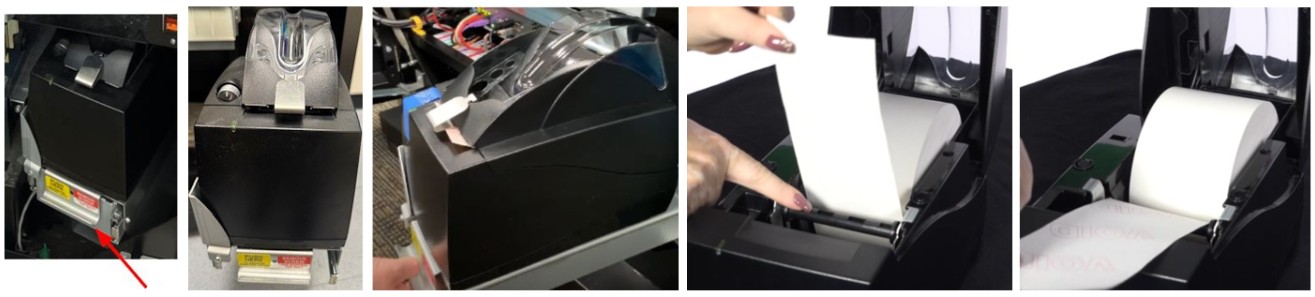
Jammed / Won’t Feed Tickets / Cutter Issue / No or Low Paper
-
Open the printer by pushing in the silver button on the front of the printer and lifting the printer door.
-
Remove the old paper roll.
- Insert a new paper roll.
-
- NOTE: The paper roll MUST feed from the bottom front of the roll when it is inserted in the printer.
-
Center the paper and pull the end past the top of the printer door.
-
While still grasping the paper, close the printer door.
-
The paper will advance and cut automatically.
-
A ticket will print that says "Accutherm Ultra".
Printer Noisy
-
Open the printer by pushing in the silver button on the front of the printer and lifting the printer door.
-
Remove the paper roll.
-
Remove any dirt, debris, or jams that may be in the paper path.
- Reinstall the paper roll.
-
- NOTE: The paper roll MUST feed from the bottom front of the roll when it is inserted in the printer.
-
Power reset the Gemini using the power switch above the managers display/touchscreen.
Intermittent Printer Problems
-
Ensure the Gemini is securely plugged into the outlet.
-
Power reset the Gemini using the power switch above the managers display/touchscreen.
-
Test the printer multiple times (print a report or printer test).
Incorrect Print / Bad Print Quality
-
Open the printer by pushing in the silver button on the front of the printer and lifting the printer door.
-
Remove the paper roll.
-
Remove any dirt or debris that may be in the paper path.
- Reinstall the paper roll.
-
- NOTE: The paper roll MUST feed from the bottom front of the roll when it is inserted in the printer.
Contact Brightstar for help or additional troubleshooting:
- Select the chat icon in the bottom right corner of this screen and type in Hello to get started.
OR
- Call the Hotline at 1-800-729-4832.