
Printer Troubleshooting
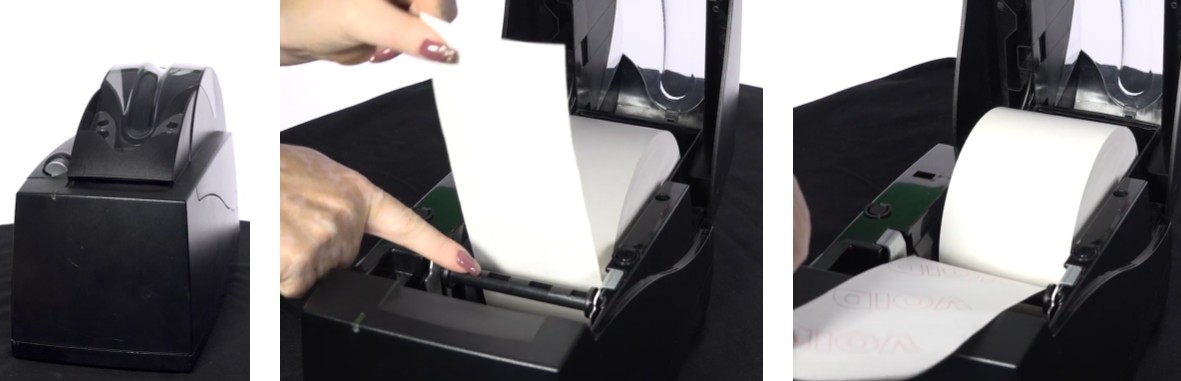
No or Low Paper
The GT1200/GT1200c will display “low paper” in the upper right hand corner when the paper is low.
-
Ensure there are no objects or personnel leaning against the printer and no one is holding their hand above the printer while tickets are printing/feeding.
-
Unload the current paper roll.
-
Load a new paper roll. Ensure the paper is loaded OVER the bar at the front of the printer.
Jammed / Frequent Jamming / Cutter or Stacker Issue / Won’t Feed Tickets
-
Ensure there are no objects or personnel leaning against the printer and no one is holding their hand above the printer while tickets are printing/feeding.
-
Open the printer and remove the paper roll.
-
Remove any dirt/debris that might be in the paper path.
-
Reinstall the paper roll into the printer. Ensure the paper is loaded OVER the bar at the front of the printer.
-
Verify the printer door is closed tightly (open and close again if necessary).
- Power reset the terminal using one of the following methods:
-
-
Hold power button on top right of the terminal display for 8 seconds, then press once to restart.
-
Toggle the ON/OFF switch located on the back of the terminal.
- Unplug the power cord from wall for 10 seconds and then plug it back in.
-
-
Test the printer multiple times (print a report or printer test).
Incorrect Print / Bad Print Quality
-
Ensure there are no objects or personnel leaning against the printer and no one is holding their hand above the printer while tickets are printing/feeding.
-
Open the printer and remove the paper roll.
-
Remove any dirt/debris that might be in the paper path.
-
Reinstall the paper roll into the printer. Ensure the paper is loaded OVER the bar at the front of the printer.
Printer Noisy
-
Ensure there are no objects or personnel leaning against the printer no one is holding their hand above the printer while tickets are printing/feeding.
-
Verify the paper is loaded OVER the bar at the front of the printer.
Error Messages
Printer Off-Line
- Follow the cable from the printer to the terminal and check the connection at back of terminal.
Printer Door Opened - Please Close Printer Door
- Verify the printer door is closed tightly (open and close again).
- If the error remains, power reset the terminal.
Printer Busy - Please Wait
- Power reset the terminal.
Printer Comm. Down - Please Connect the Printer
One of the printer connections may be unplugged.
- Secure both connections behind the printer and behind the terminal.
- If the error remains, power reset the terminal.
Terminal stuck on 77%
The terminal will only load to 77% if the printer is not plugged into the terminal.
- Secure all connections to the printer and to the terminal.
- If necessary, power reset the terminal.
Printer - Missing Resources
One of the printer connections may be unplugged.
- Secure both connections behind the printer and behind the terminal.
- If the error remains, power reset the terminal.
Printer Unknown Problem / Check Cutter Bar
- Blow out debris from around heat sensor.
- Check connections to the terminal.
- Power reset the terminal.
Printer Downloading
- Check data connections.
- Power reset the terminal.
- Power reset the Customer Ticket Checker.
Device Error
This means there is a loose connection.
- Secure all connections to the rear of the terminal and to the printer.
- Power reset the terminal.
Sign On In Progress
- Clear the paper jam.
- Secure all connections to the rear of the terminal and to the printer.
- Power reset the terminal.
Printer Off Line – Please Connect Printer
- Check connections to the terminal and printer.
- Power reset the terminal.
Video References
-
Select the Help icon on the GT1200/GT1200c display/touchscreen.
-
Click here to view a video on How To Change the Paper Roll (56 seconds).
-
Click here to view a video on How To Clean the Printer (1 minute 10 seconds).
Contact Brightstar for help or additional troubleshooting:
- Select the chat icon in the bottom right corner of this screen and type in Hello to get started.
OR
- Call the Hotline at 1-800-729-4832.