
Overview GT1200 and GT1200c
On Counter Terminals
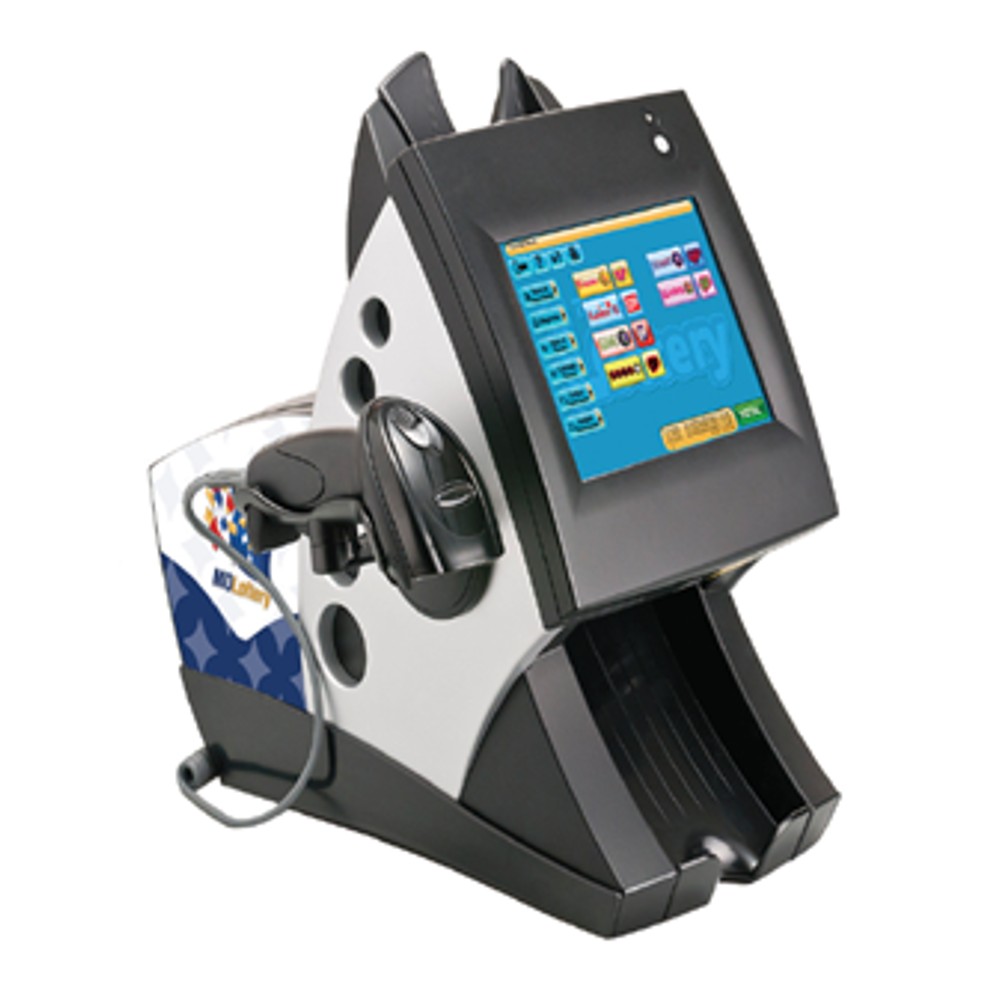
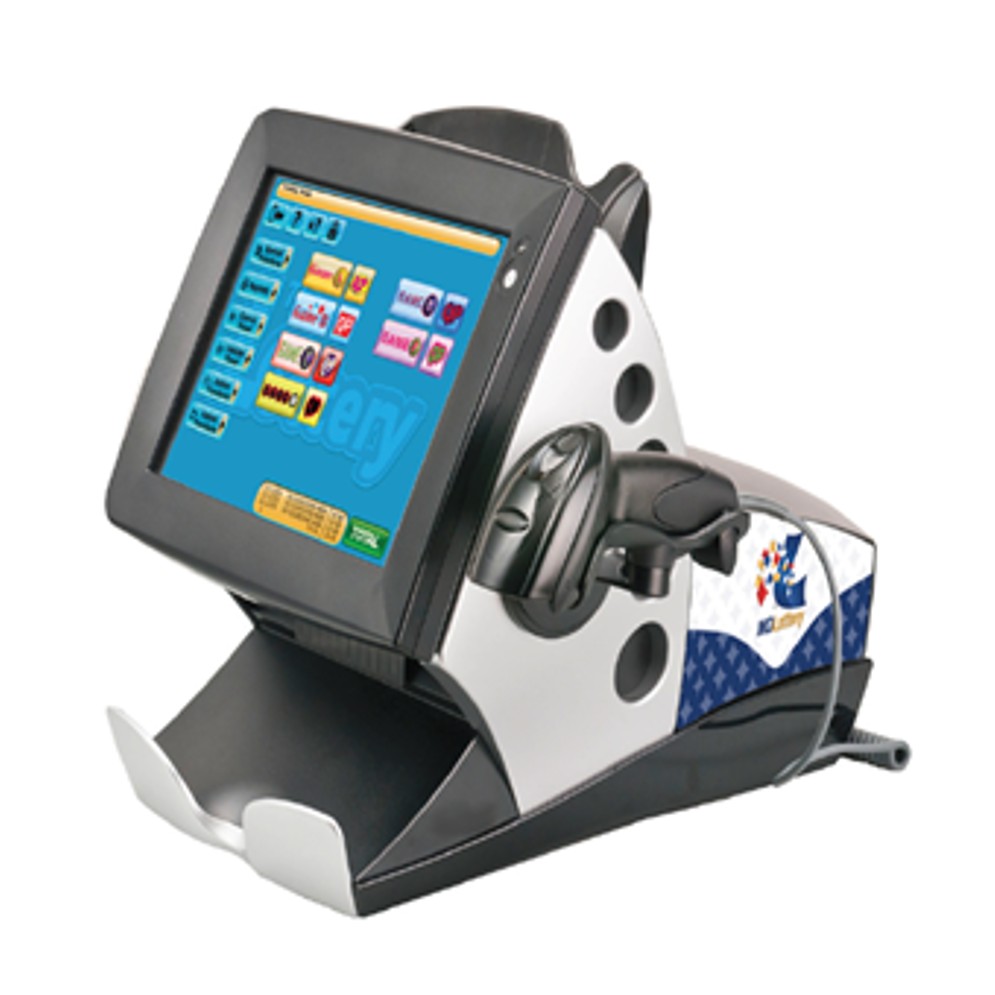
Sign On
-
Select Sign On and a screen will display asking for the 2-digit Clerk number.
-
Enter the 2-digit Clerk number using the numeric keypad and then a screen will display asking for the 4-digit Pass number.
-
Enter the 4-digit Pass number using the numeric keypad. A Sign-On confirmation message will appear.
-
Select OK and the News Message will display.
-
Select Print to print the News Message, or touch OK to display the Home Screen.
Sign Off
-
Select Sign Off.
-
Select Yes to confirm the Sign Off.
Putting the Terminal IN Training Mode
-
Select Help.
-
Select Training Mode on/off.
-
The terminal will say “Welcome to Training Mode".
-
Select OK.
Taking the Terminal OUT Training Mode
-
Select Help.
-
Select Training Mode on/off.
-
The terminal will say “Welcome to Normal Selling Mode”.
-
Select OK.
Mail Icon
The Mail icon will appear when a message has been sent to the terminals.
-
Select Special Functions.
-
Select Mail.
-
Select Read.
Hinges
-
Move the screen up and down to desired position.
Fan Malfunction
- Power reset the terminal by unplugging the power cord from the electrical outlet for at least 10 seconds and then plug it back in.
Contact Brightstar for help or additional troubleshooting:
- Select the chat icon in the bottom right corner of this screen and type in Hello to get started.
OR
- Call the Hotline at 1-800-729-4832.