
Ventus Communications Troubleshooting
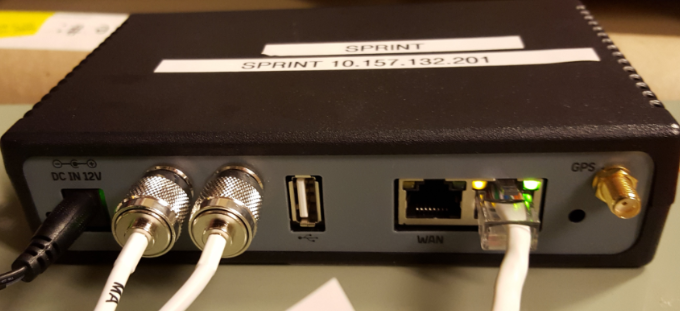
- Verify the Ventus Router has power by viewing if the LED on the rear panel is lit. (The power LED is located next to power cord connection.)
If the Ventus Router does not have power:
-
-
-
-
Ensure the Ventus Router power supply is plugged in to an electrical outlet.
-
Verify power to the electrical outlet using a small appliance (radio, etc.). If there is no power, try a different outlet.
-
-
-
- Ensure all power and data connections to Ventus Router, Antenna, and terminal are secure.
-
- Click Here to view a video on Verifying and Reseating the LAN Connection (1 minute 24 seconds).
-
Turn off the terminal using one of the following methods:
-
-
Hold the power button on top right of the terminal display for 8 seconds.
-
Toggle the ON/OFF switch located on the back of the terminal.
-
Unplug the power cord from wall.
-
-
-
Unplug the power cord to the Ventus Router from the power outlet. Wait at least 30 seconds for the battery back up to power off.
-
After all lights on the Ventus Router have turned off, plug the Ventus router back into the outlet. Ensure lights are back on before moving to the next step.
- Power on the terminal.
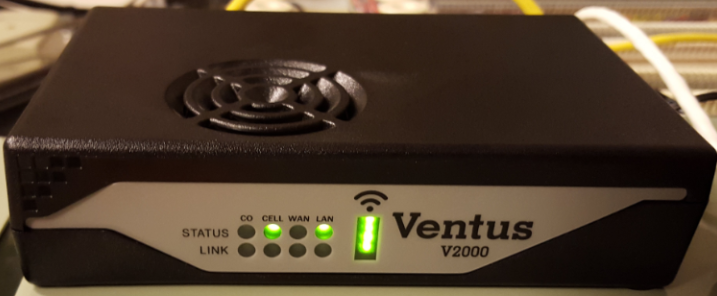
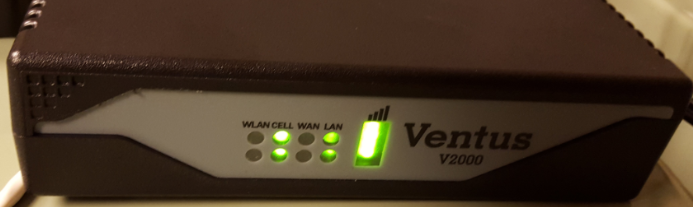
Ventus - Front
-
One status light and one link should always be green.
-
The green Signal indicator lights display the signal strength.
-
All four LED lights showing green indicates the best signal.
-
No LED lights indicate no signal.
-
Ventus - Back
- Any active LAN ports on the Ventus modem should have a flickering green or yellow light on the port where the cable is plugged in.
Contact Brightstar for help or additional troubleshooting:
- Select the chat icon in the bottom right corner of this screen and type in Hello to get started.
OR
- Call the Hotline at 1-800-729-4832.