
Printer Type A Troubleshooting
NOTE: The paper stock in the GameTouch 20/28 can be substituted with the paper stock used by the GT1200/GT1200c printer.
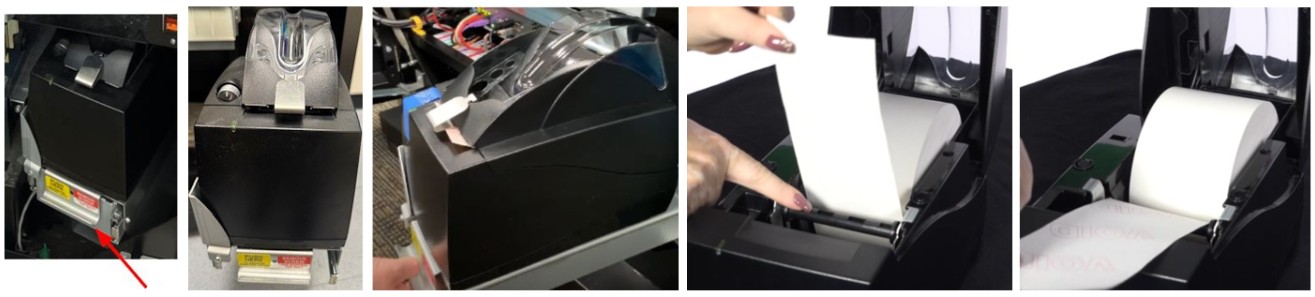
-
Open the Main Door.
-
Slide the printer shelf forward.
-
Open the printer by pushing down on the silver button on the front of the printer.
-
Remove the paper roll.
- Insert a new paper roll.
-
- NOTE: Paper feeds from the bottom of the paper roll when it is inserted into the printer.
-
Center the paper and pull the end past the top of the printer door.
-
While still grasping the paper, close the printer door.
- The paper will advance and cut automatically.
Printer Type B Troubleshooting
NOTE: The paper stock in the GameTouch 20/28 can be substituted with the paper stock used by the GT1200/GT1200c printer.
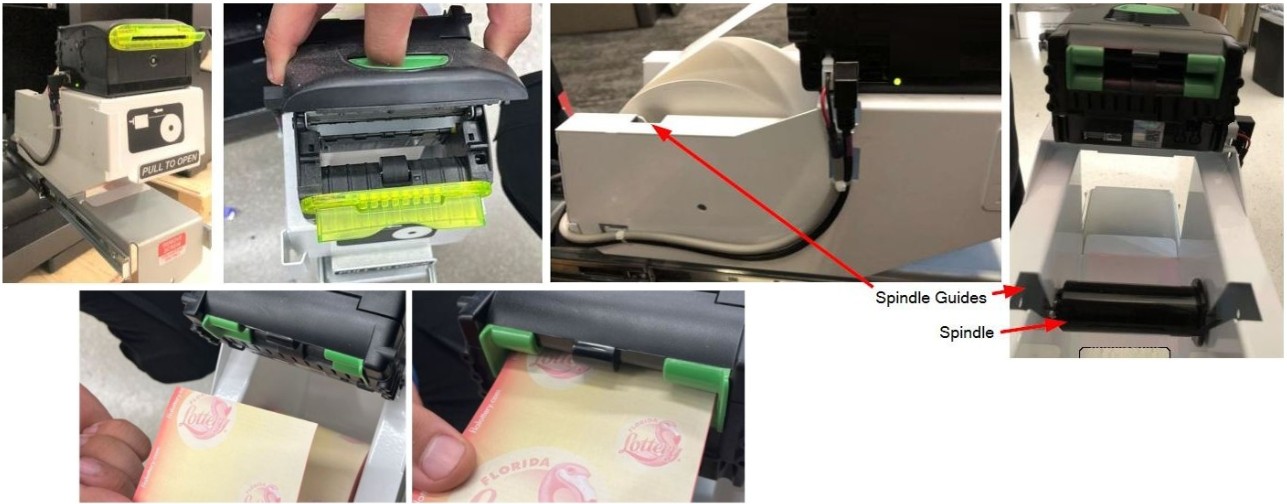
-
Open the Main Door of the GameTouch 20/28 with the key labeled MD and locate the printer.
-
Slide the printer shelf forward.
-
Open the printer by sliding the green button back and lifting the printer cover.
-
Pull any remaining paper through the rear of the printer, then close the printer cover.
-
Remove the paper roll from the printer bucket. Ensure the spindle in the middle of the paper roll does not fall out.
-
Remove any dirt/debris that might be in the paper path with a can of compressed air or a soft, dry cloth.
-
Use the spindle guides to place the paper roll and spindle into the printer.
-
Feed the paper into the rear of the printer so the paper is feeding from the TOP of the roll. The printer will auto-feed and cut the paper automatically.
-
Gently push the printer drawer back into the GameTouch 20/28.
Contact Brightstar for help or additional troubleshooting:
- Select the chat icon in the bottom right corner of this screen and type in Hello to get started.
OR
- Call the Hotline at 1-800-729-4832.