
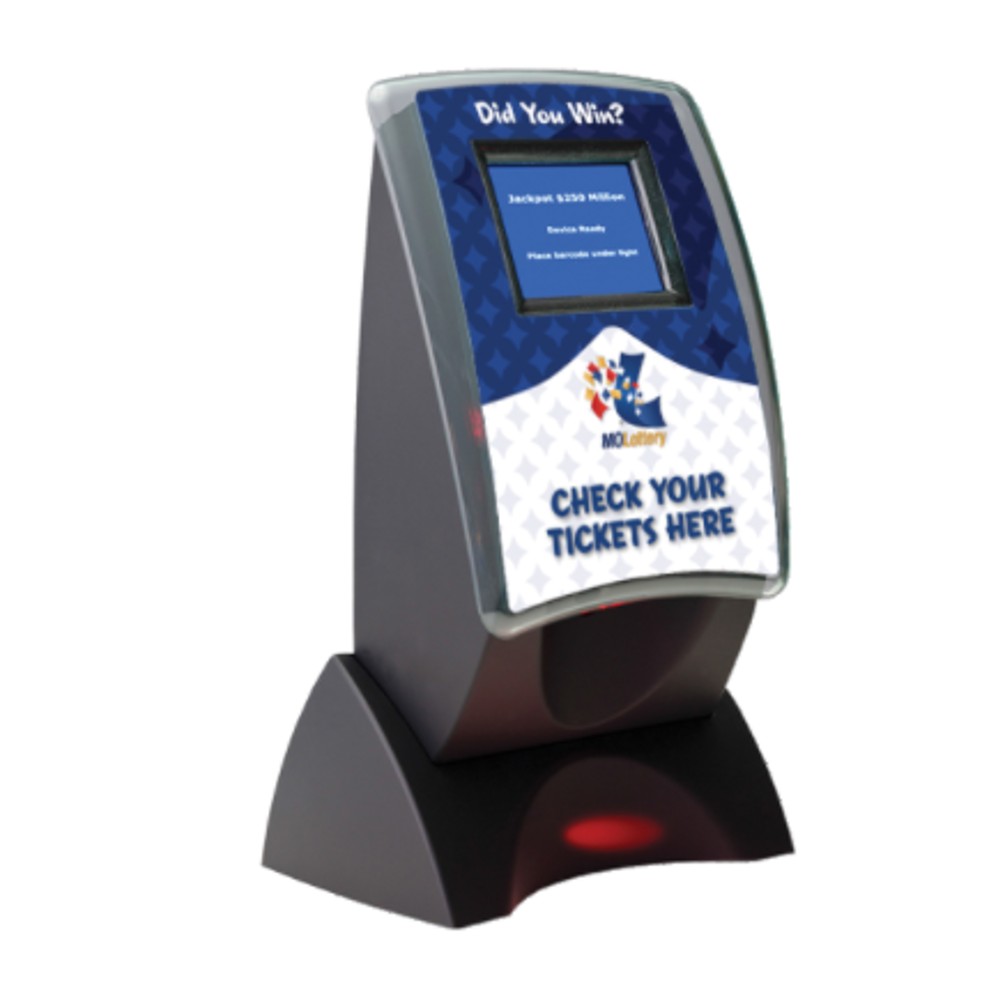
Customer Ticket Checker Troubleshooting
Note: If the ticket checker is not scanning the barcodes to Draw Game Tickets, check the print quality of the tickets. If the print is too light, the ticket checker may not be able to read the ticket. To troubleshoot the printer click here.
-
Secure the data connection from the ticket checker to the rear of terminal.
-
Check the ticket checker for jammed tickets which, can cause error messages or make the ticket checker unable to scan tickets.
-
Power reset the ticket checker by unplugging the power cord from the outlet. Wait 5 seconds and then plug it back in.
-
If the ticket checker is still not working, reset the GT1200/GT1200c terminal using one of the following methods:
-
Toggle the ON/OFF switch on the back of the terminal.
- Unplug the terminal power cord from the outlet for 10 seconds and then plug back in.
-
- Test the ticket checker by scanning a ticket.
Contact Brightstar for help or additional troubleshooting:
- Select the chat icon in the bottom right corner of this screen and type in Hello to get started.
OR
- Call the Hotline at 1-800-729-4832.