Cash Log Reports
The Cash Log report provides an overview of all terminal transactions and the dispensing status for each transaction.
Accessing the Cash Log Report using the Self-Service Terminal Functions Manager.
From the Terminal Functions Manager main menu, press the Logging / Security Journaling button.

The Journal screen will appear. Select the desired date for the report to be generated; the current day will automatically be shown. Press the CASH button on the left side of the report display box to run the report.
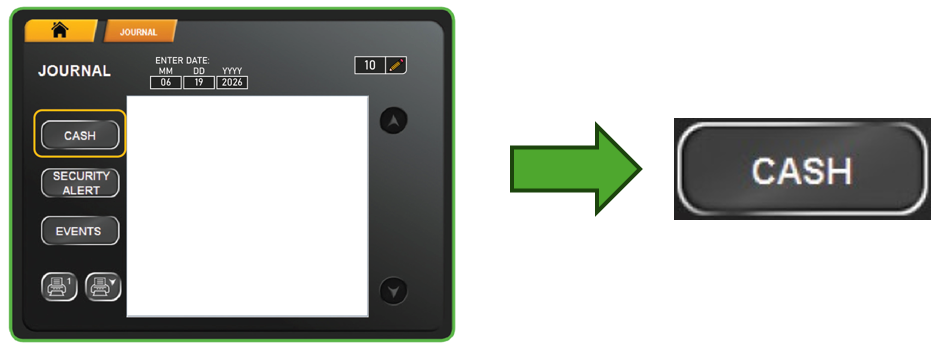
Note: By default, the Cash Log shows the last 10 transactions in the order they occurred. Using the pencil icon button in the upper right-side of the Journal screen, this number can be increased to 1000 transactions, as needed.
Cash Log Report Overview
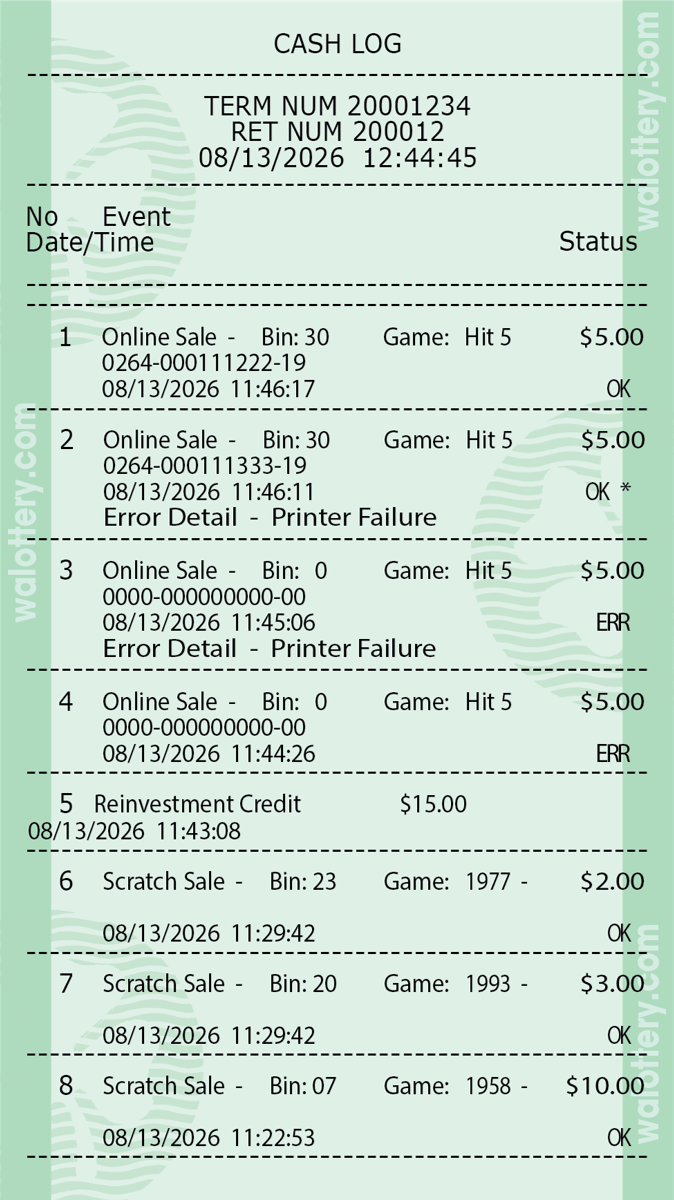
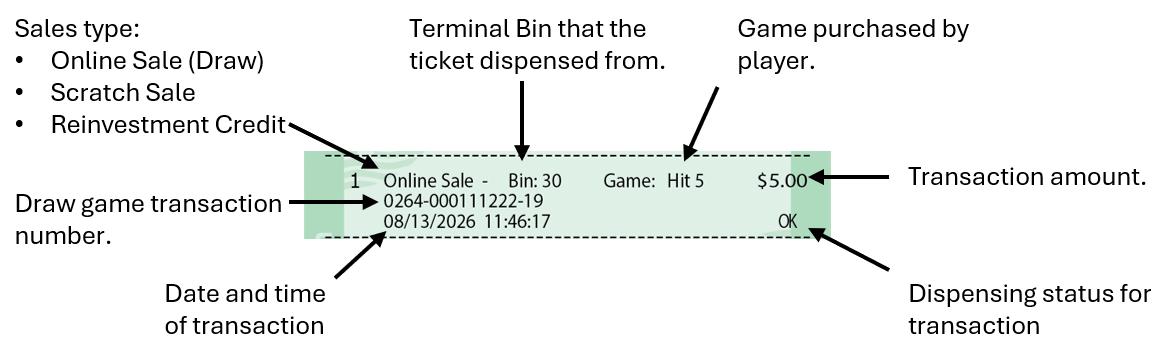
Reading the Cash Log Report
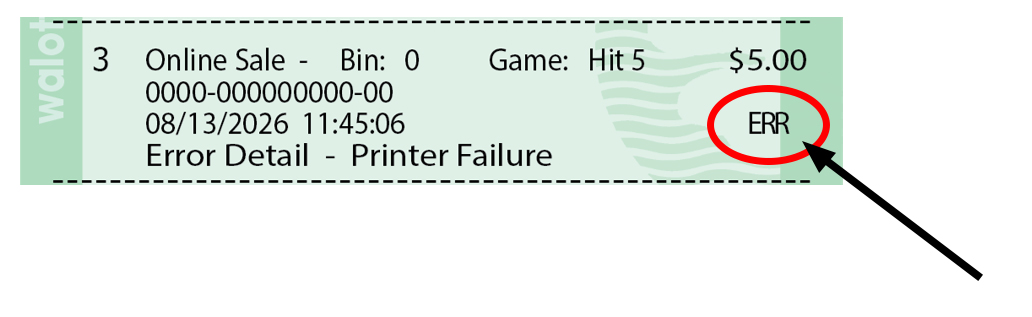
Identifying an Error on the Cash Log Report
In some situations, the self-service terminal may have a dispensing error. This can occur for various reasons – for example: a ticket gets jammed in a bin roller or stuck when falling to the ticket collection bin at the bottom of the machine.
When an error occurs, the Cash Log report will indicate the dispensing incident with “ERR.