
Reboot Terminal
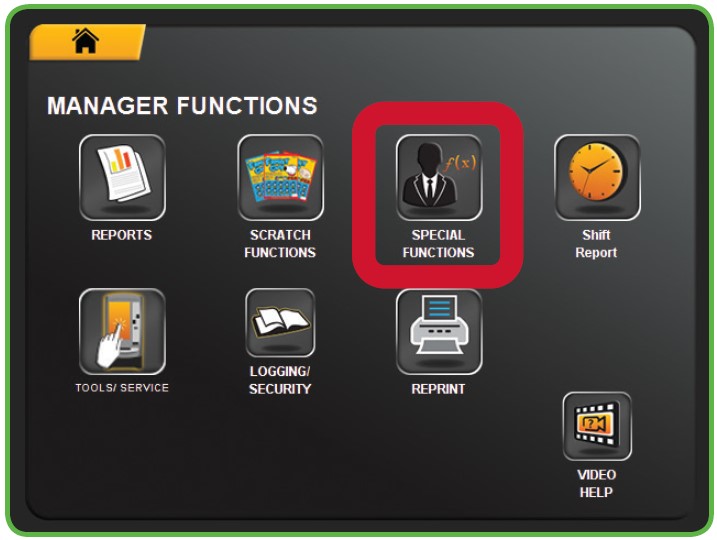
- Touch SPECIAL FUNCTIONS from the Manager Functions Menu.
- The Management Functions screen displays.
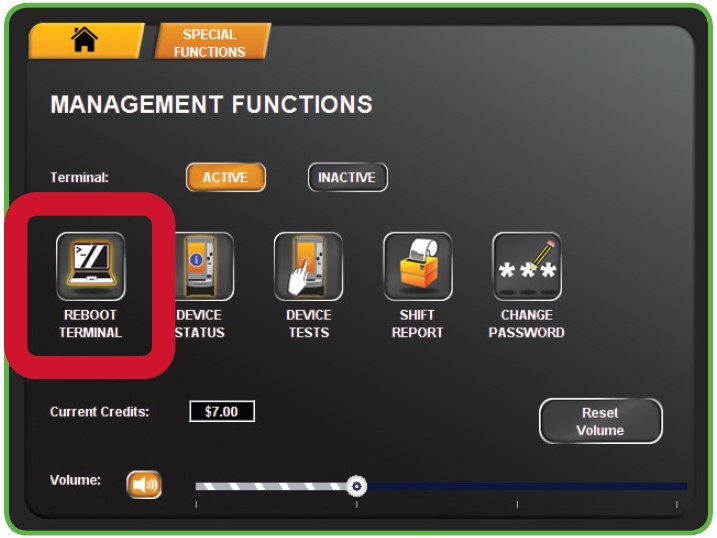
- Touch REBOOT TERMINAL from the Management Functions menu.
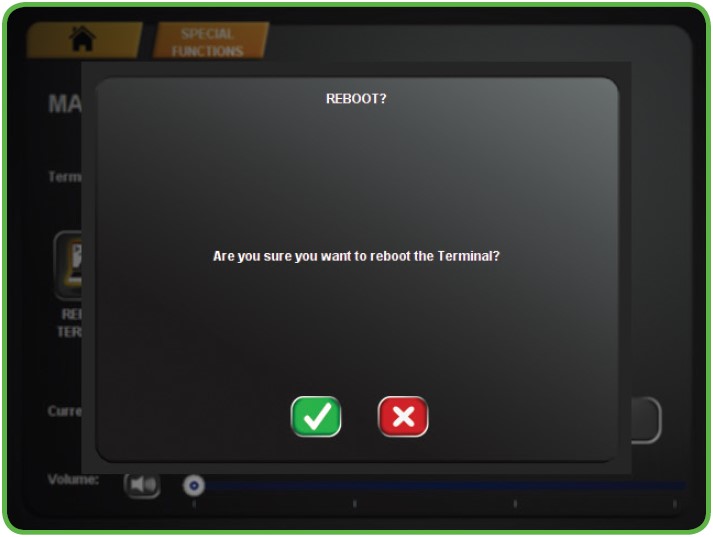
- A confirmation screen displays. Touch the GREEN CHECKMARK to reboot the terminal or touch the RED X to cancel.
Note: A reboot, also known as a soft reset, refers to the process of closing down all running software applications and background. This process is typically performed in the terminal setting built-in functionality, which can be accessed via the menu.
On the other hand, a power down, commonly referred to as a hard reboot or a power cycle, involves cutting off the power supply to terminal for a brief period before turning it back on. Both rebooting and powering down serve the purpose of refreshing the terminal, aiding in the resolution of various technical problems that may arise during the terminal’s operation.

Reboot Terminal

Device Status
Device Tests
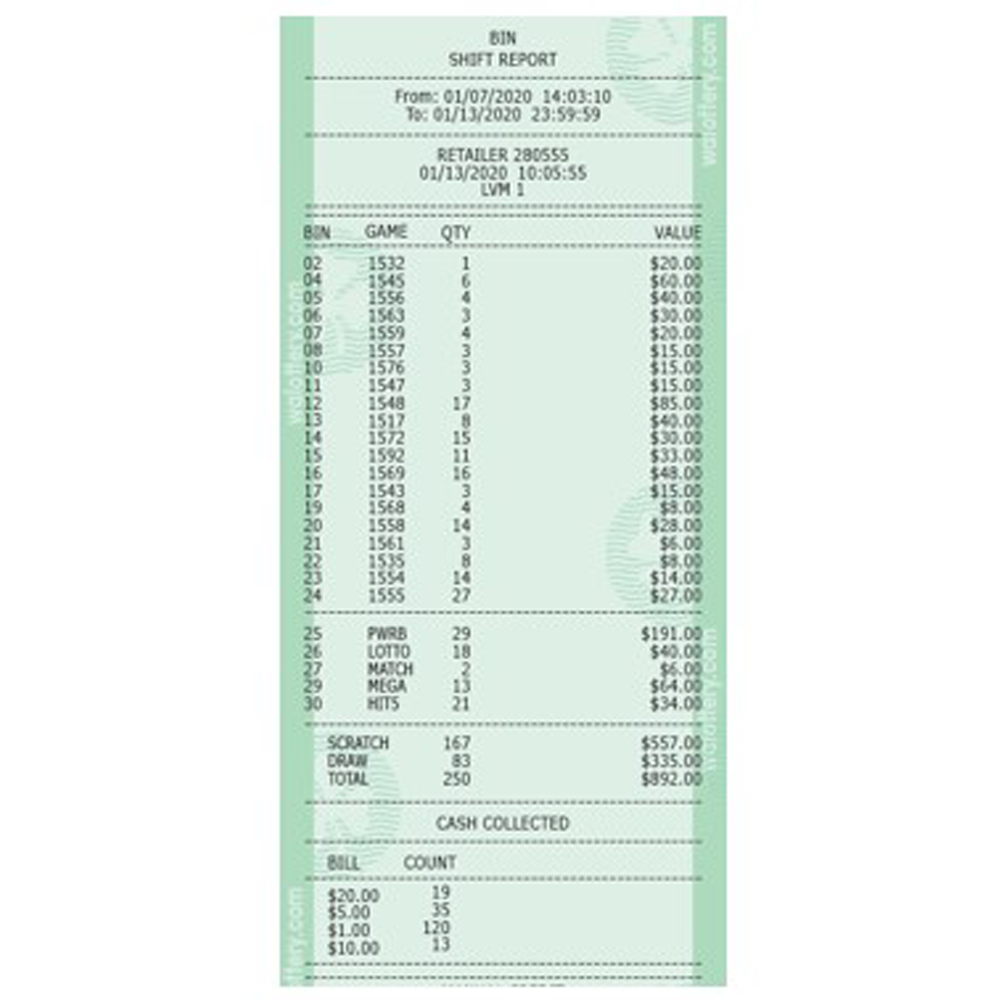
Shift Report
Volume
Adding / Removing Games
ADDING/REMOVING GAMES VIA THE PARAMETERS BUTTON
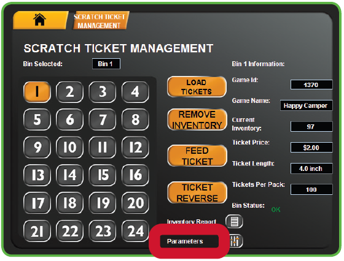
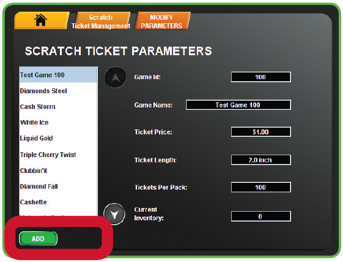
The Parameters button displays product details for each existing game on the terminal. Use this function to Add a new game or Remove an existing game.
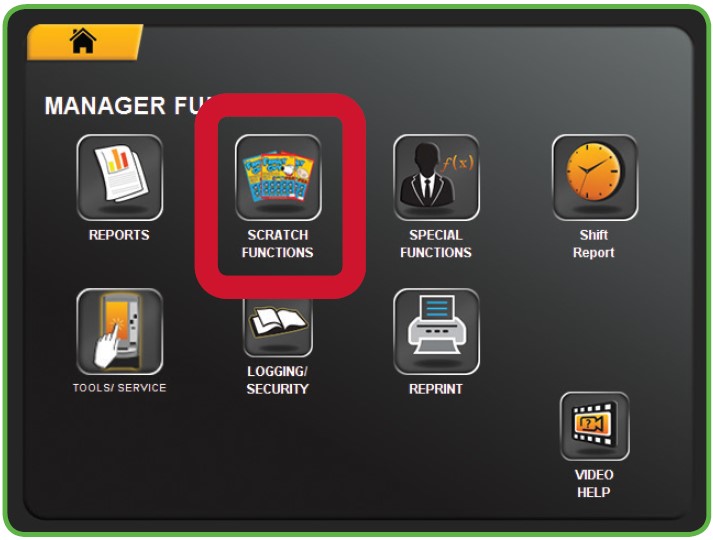
1. Touch SCRATCH FUNCTIONS from the Manager Functions Menu. Then, touch SCRATCH TICKET MANAGEMENT.
2. Touch the desired BIN NUMBER.
3. Touch PARAMETERS.
4. TO REMOVE AN EXISTING GAME: Touch REMOVE. A Confirmation screen displays. Touch the GREEN CHECKMARK to continue, or touch the RED X to cancel.
5. TO ADD A NEW GAME: Touch ADD. Enter the Game ID, then touch the GREEN CHECKMARK.
Adding / Removing Games
LOADING TICKETS: FULL OR PARTIAL PACKS USING MANUAL ENTRY
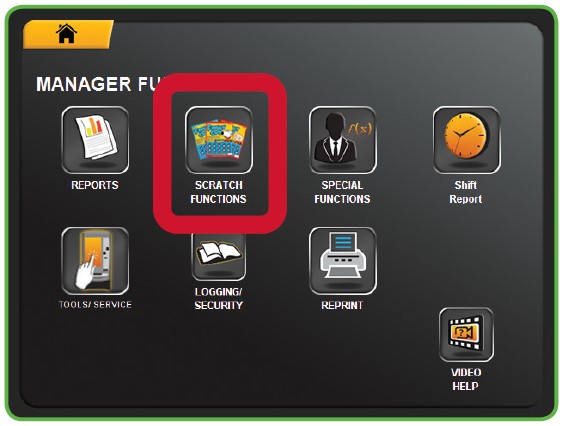
- Touch SCRATCH FUNCTIONS from the Manager Functions Menu. Then, touch SCRATCH TICKET MANAGEMENT.
- Touch the desired BIN NUMBER. Touch UNLOAD on the desired Bin (if needed).
- Touch LOAD TICKETS.
- Enter the Game, Pack and FIRST ticket number manually, then touch the GREEN CHECKMARK.
- If you are loading a Full Pack, touch FULL PACK.
- If you are loading a Partial Pack, enter the Game, Pack, and LAST ticket number manually, then touch the GREEN CHECKMARK.
- The system proceeds to Activate the pack automatically. A confirmation screen displays. Touch the GREEN CHECKMARK.
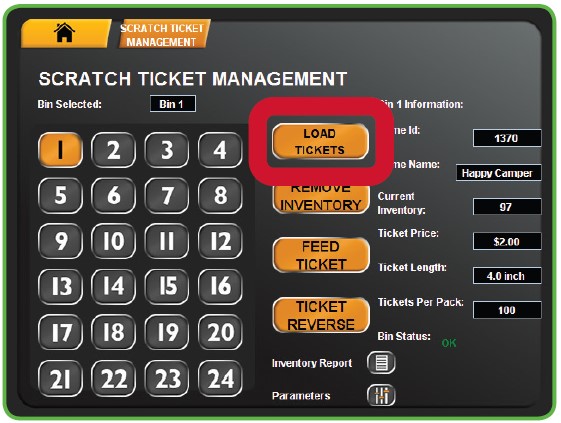
NOTE: Selecting the FEED TICKET option from the Scratch Ticket Management screen moves tickets in the selected bin forward. Selecting the TICKET REVERSE option from the Scratch Ticket Management screen reverses the ticket in the selected bin.