Draw Reports
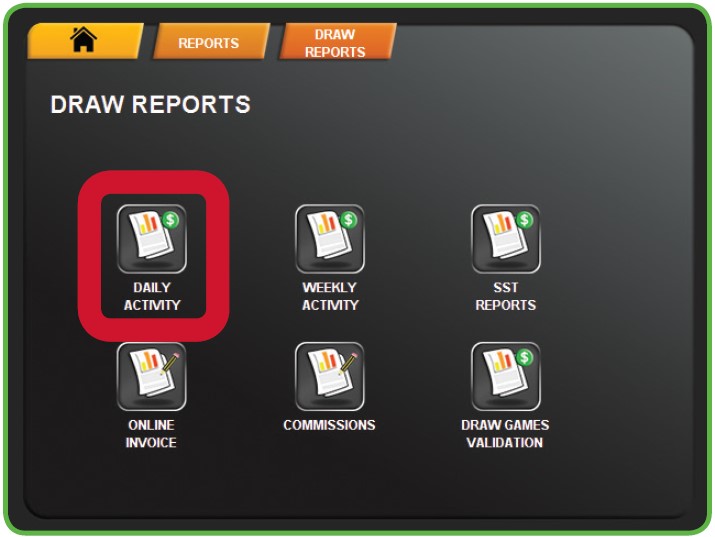
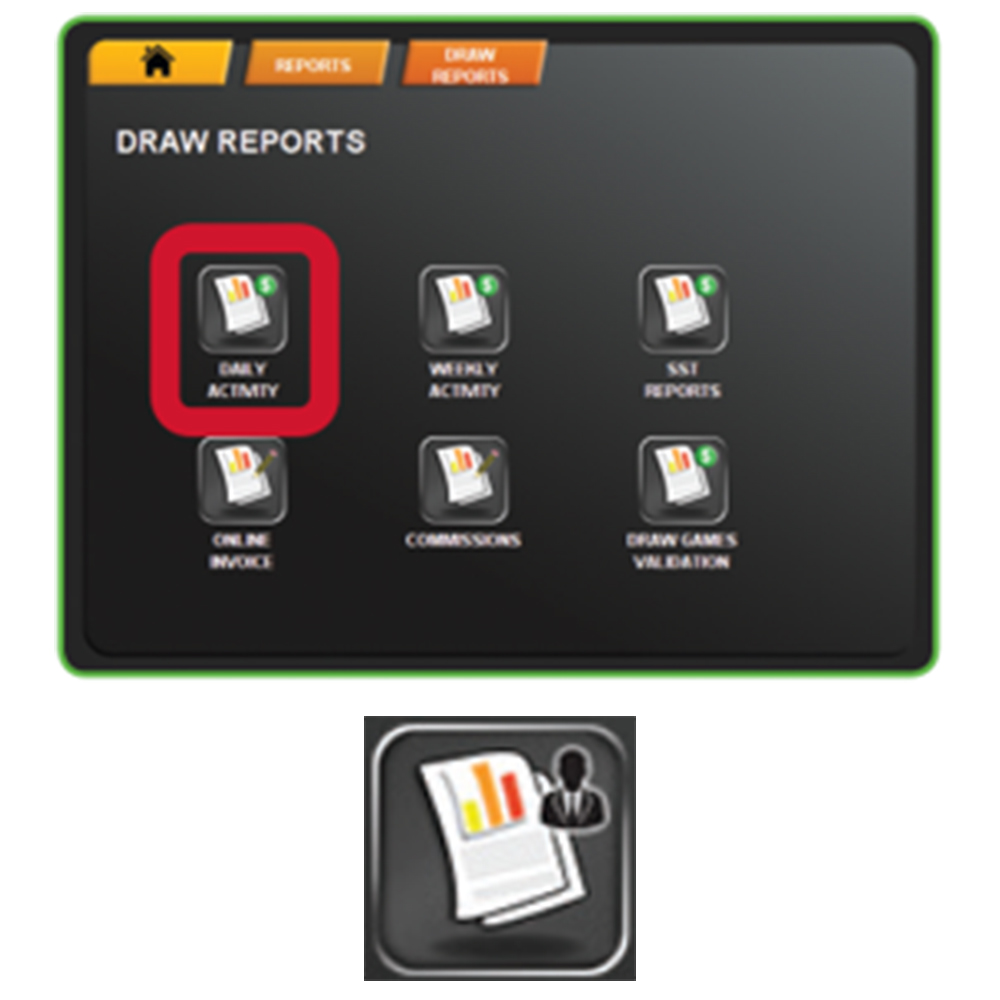
The Draw Reports Menu provides access to the following reports: Daily Activity, Weekly Activity, SST Reports, Online Invoice, Commissions, and Draw Games Validation.
1. Touch DRAW REPORTS from the Reports Menu.
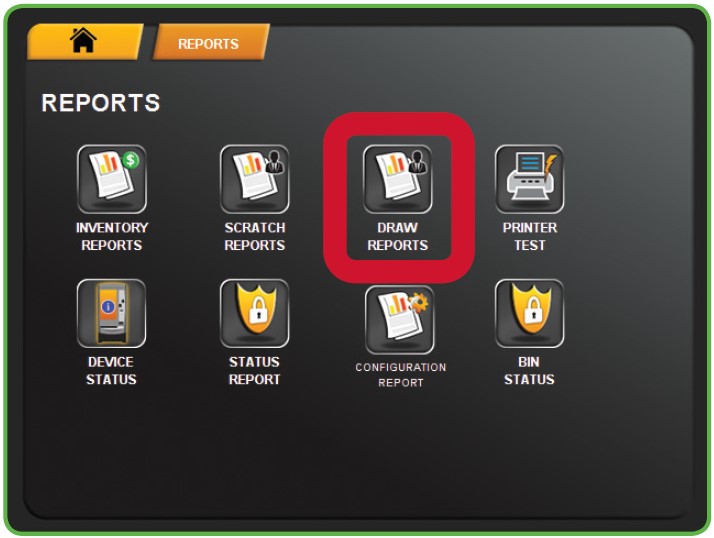
2. The Draw Reports Menu displays. Select the desired option. For example, touch DAILY ACTIVITY.
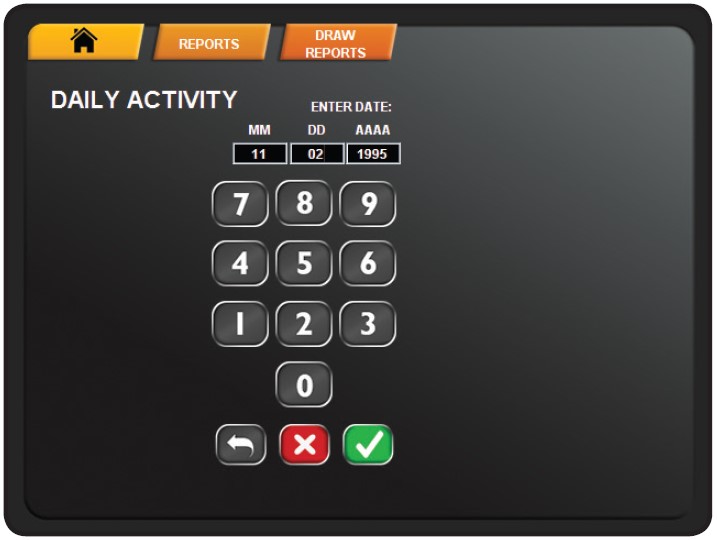
3. Touch the GREEN CHECKMARK for the current date. To change the date, select the field and touch the BACK ARROW, then enter the desired date using the NUMERIC TOUCHPAD.
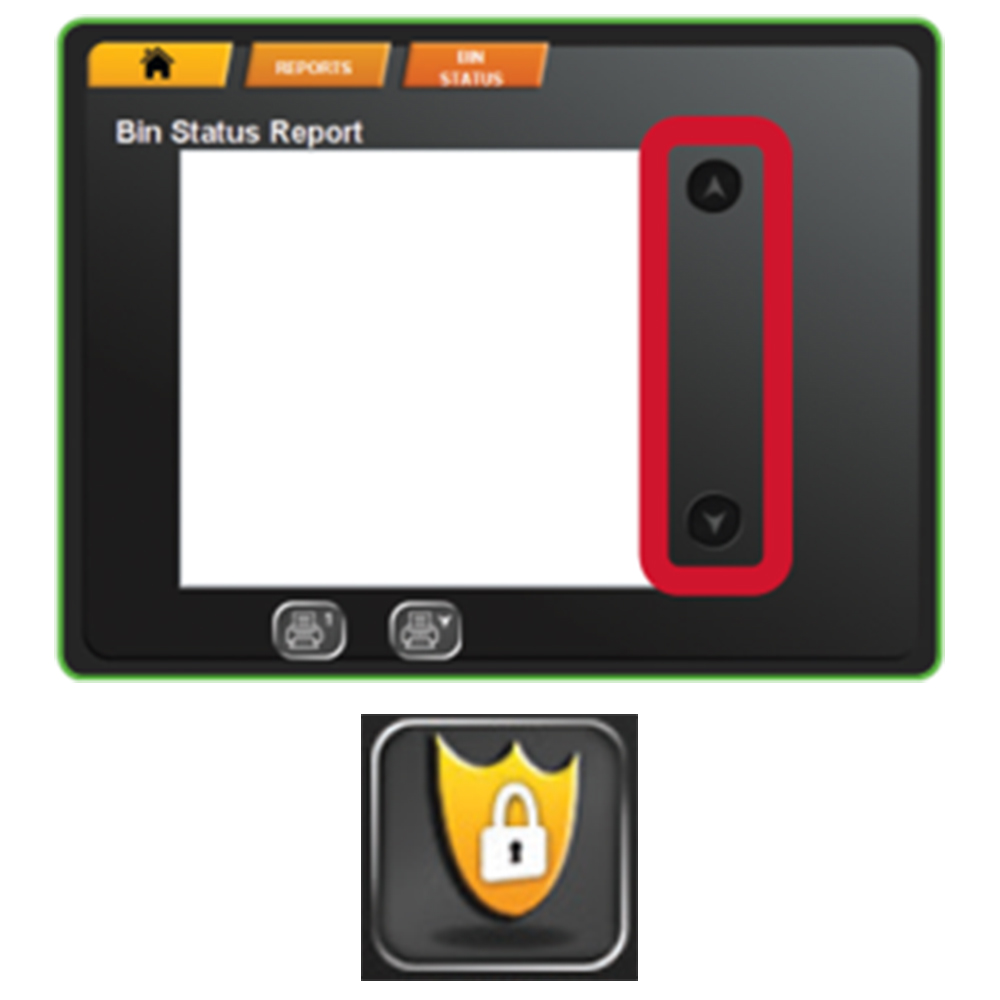
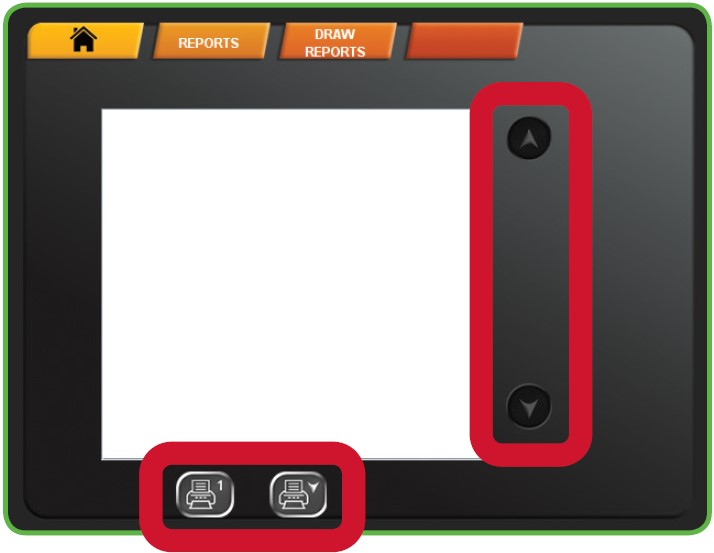
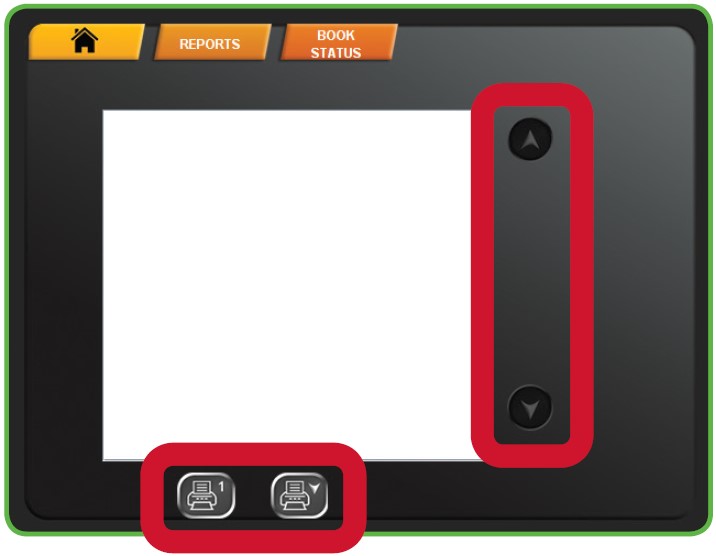
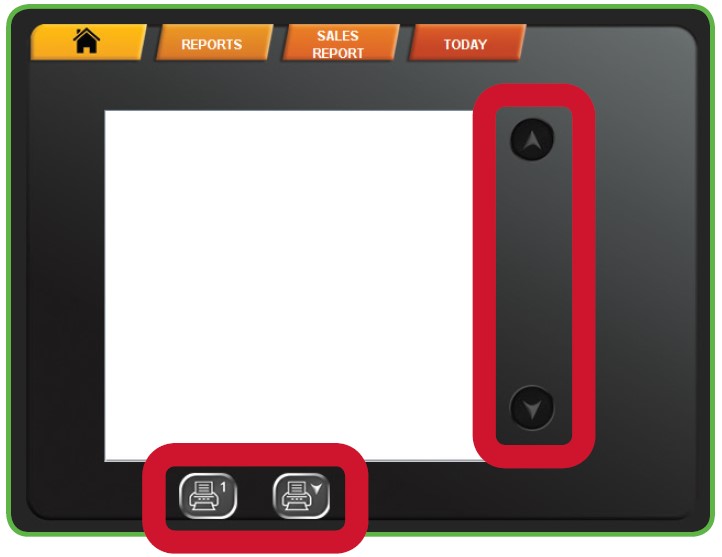
4. Use the UP and DOWN ARROWS to scroll through text. Touch one of the PRINT buttons to print the report. Touch HOME to return to the Manager Functions Menu.
NOTE: The first button prints only what is visible on the screen. The second button prints the full report.
Scratch Reports
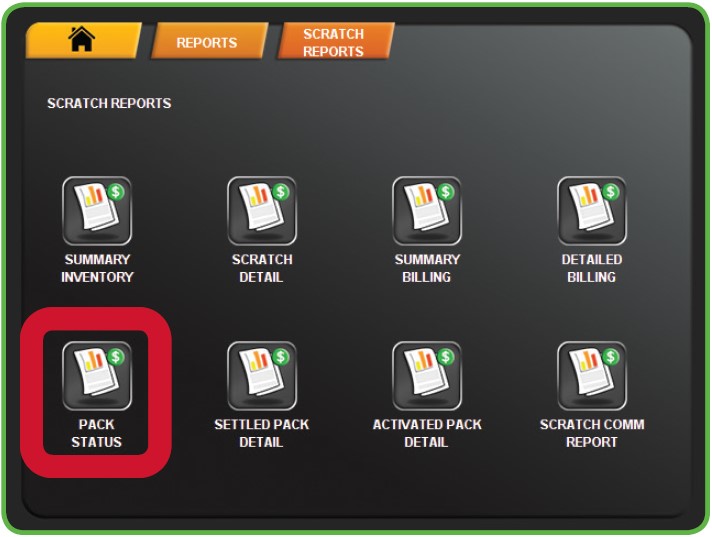
The Scratch Reports Menu provides access to the following reports: Scratch Summary, Scratch Detail, Summery Billing, Detailed Billing, Pack Status, Settled Pack Detail, Activated Pack Detail, and Scratch Comm Report.
1. Touch SCRATCH REPORTS from the Reports Menu.
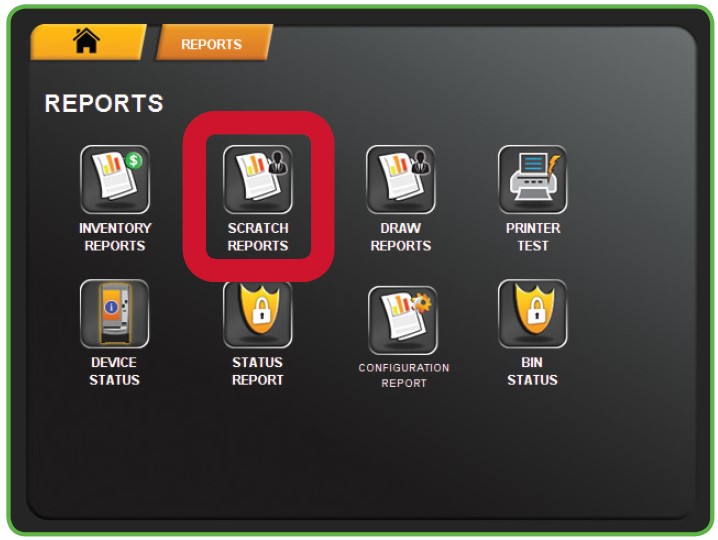
2. The Scratch Reports Menu displays. Select the desired option. For example, touch PACK STATUS.
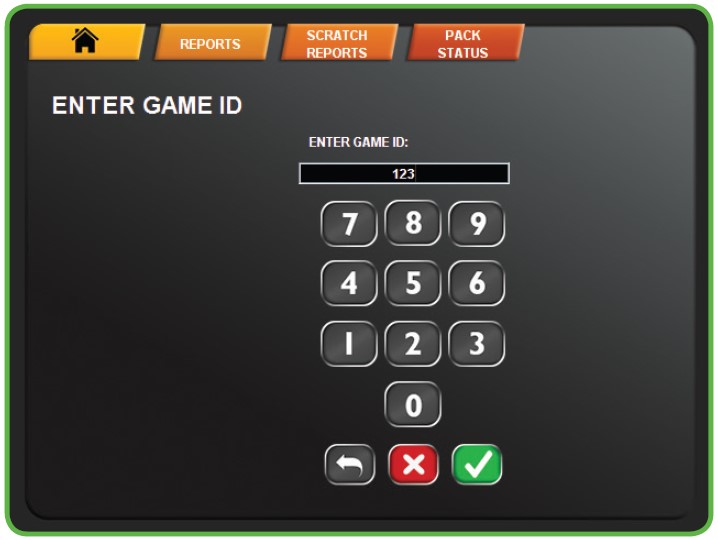
3. Enter the Game ID using the NUMERIC TOUCHPAD, then touch the GREEN CHECKMARK.
4. Use the UP and DOWN ARROWS to scroll through text. Touch one of the PRINT buttons to print the report. Touch HOME to return to the Manager Functions Menu.
NOTE: The first button prints only what is visible on the screen. The second button prints the full report.
Inventory Reports
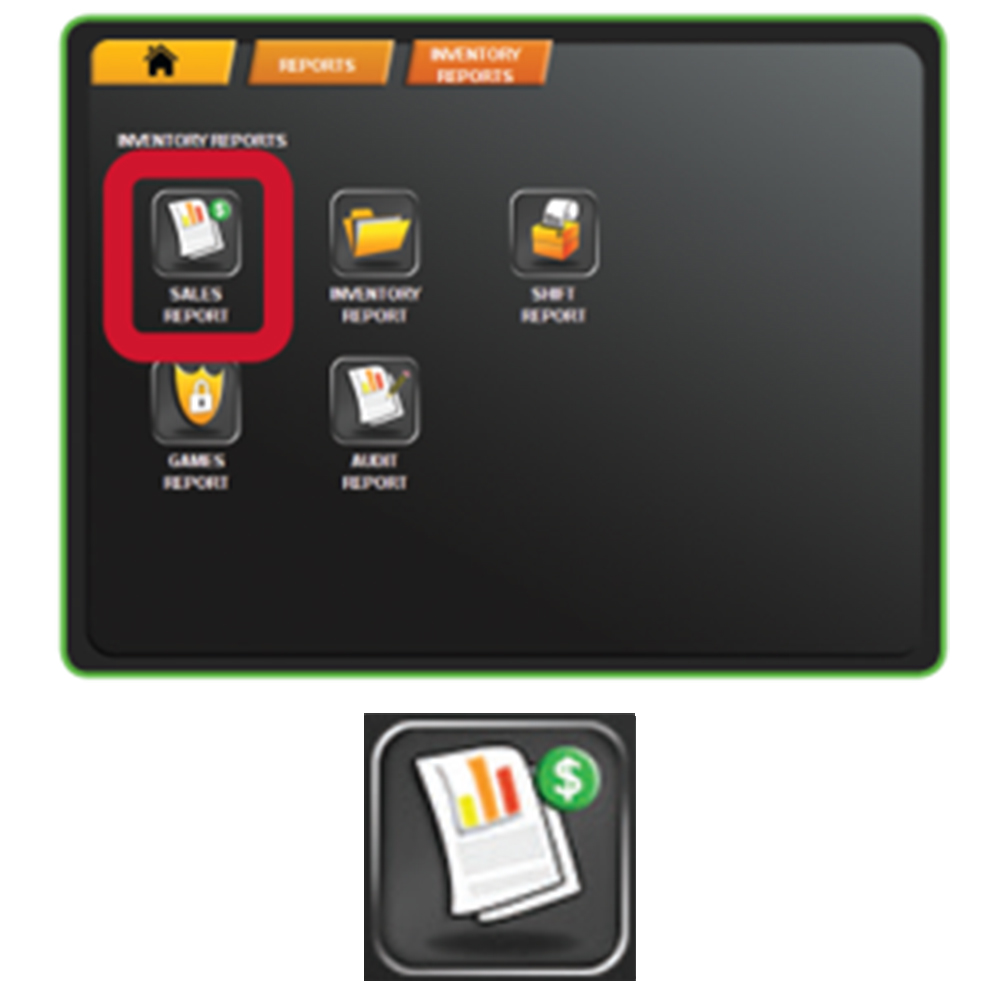
The Inventory Reports Menu provides access to the following reports: Sales Reports, Inventory Report, Shift Report, Games Report and Audit Report.
1. Touch INVENTORY REPORTS from the Reports Menu.
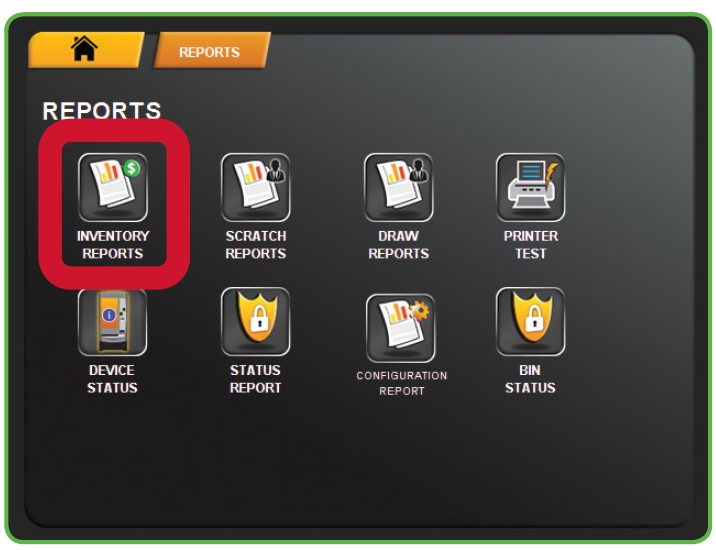
2. The screen displays the Inventory Reports Menu. Select the desired option. For example, touch SALES REPORT.
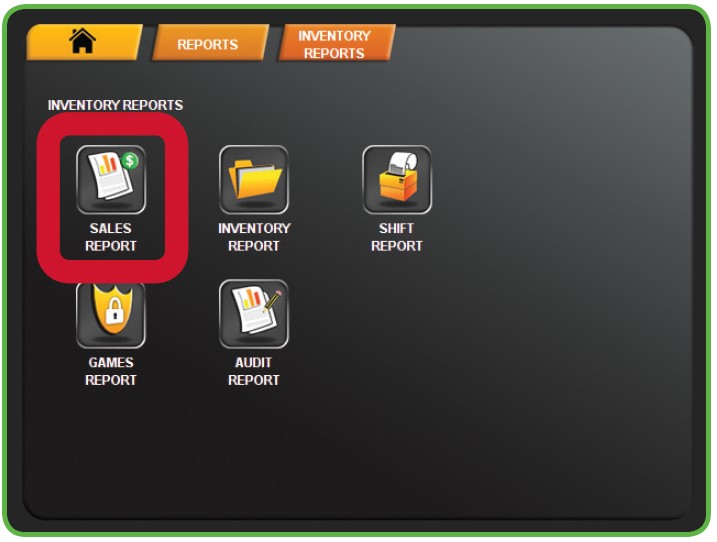
3. Select the desired time-frame. For example, touch TODAY.
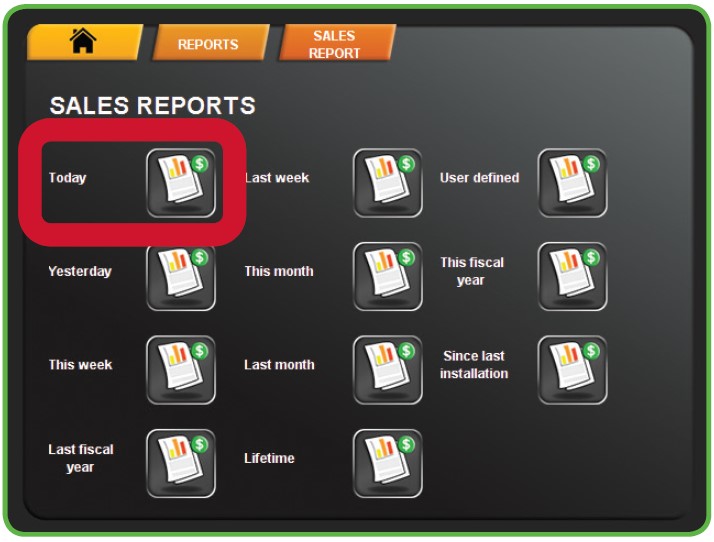
4. Use the UP and DOWN ARROWS to scroll through text. Touch one of the PRINT buttons to print the report. Touch HOME to return to the Manager Functions Menu.
NOTE: The first button prints only what is visible on the screen. The second button prints the full report.
Inventory Reports

Scratch Reports
Draw Reports
Printer Test
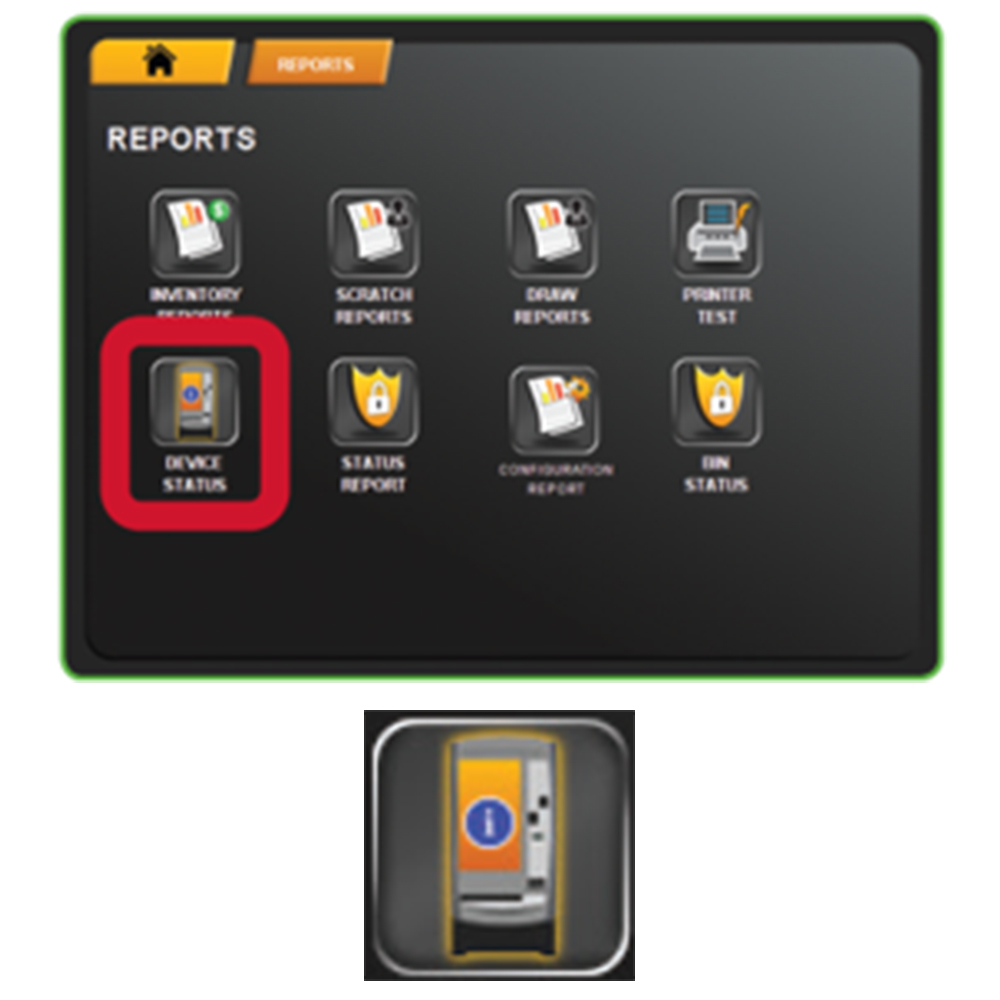
Device Status
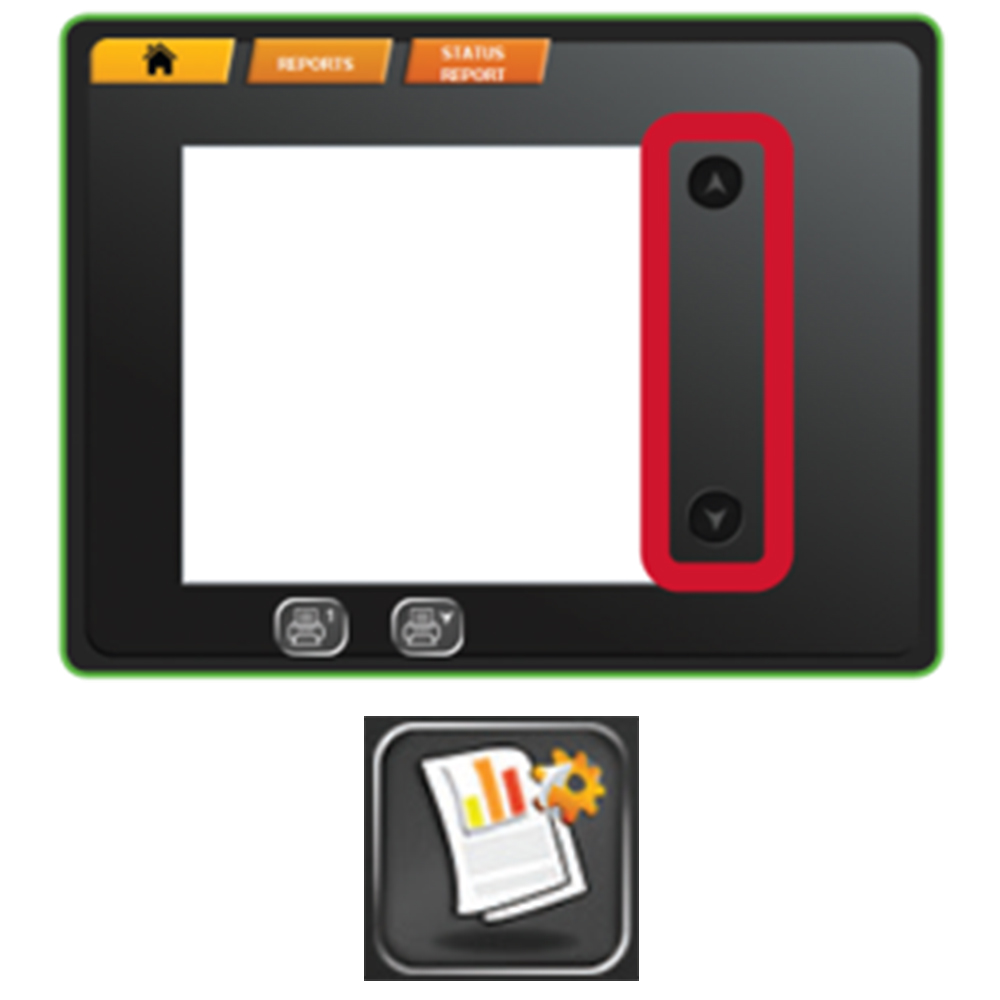
Status Reports
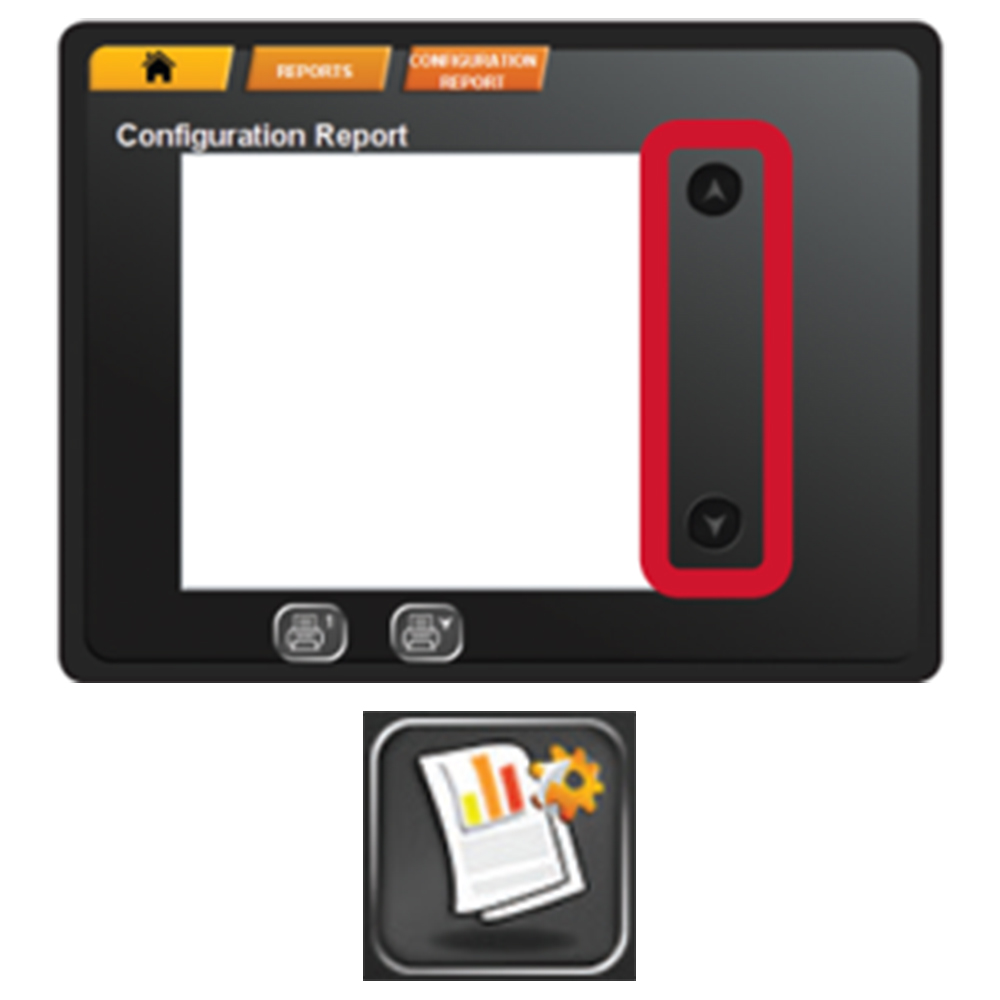
Configuration Report