RSS WA
  1. You are here:  
  2. Home
  3. GENERAL

GT24/28 System Overview

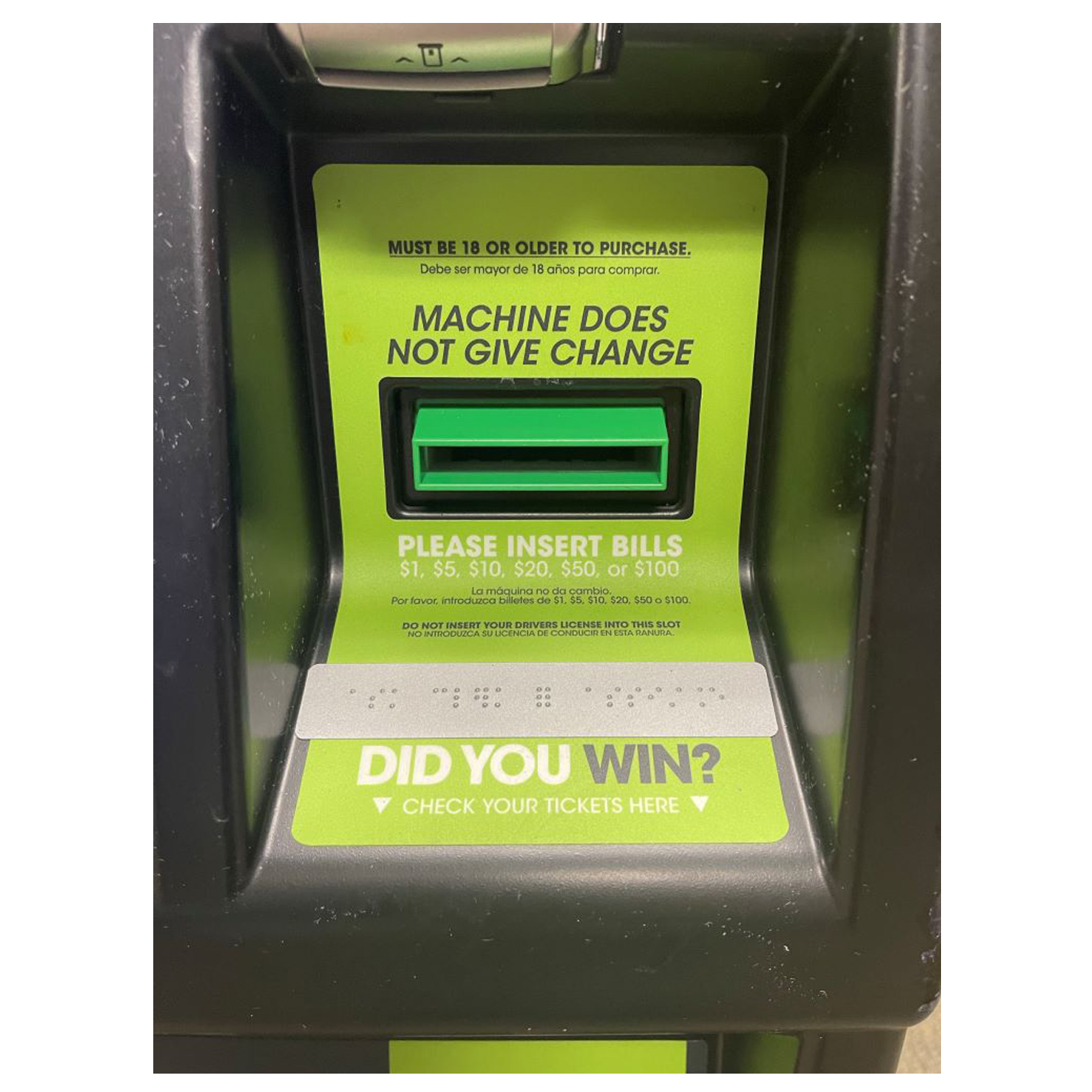
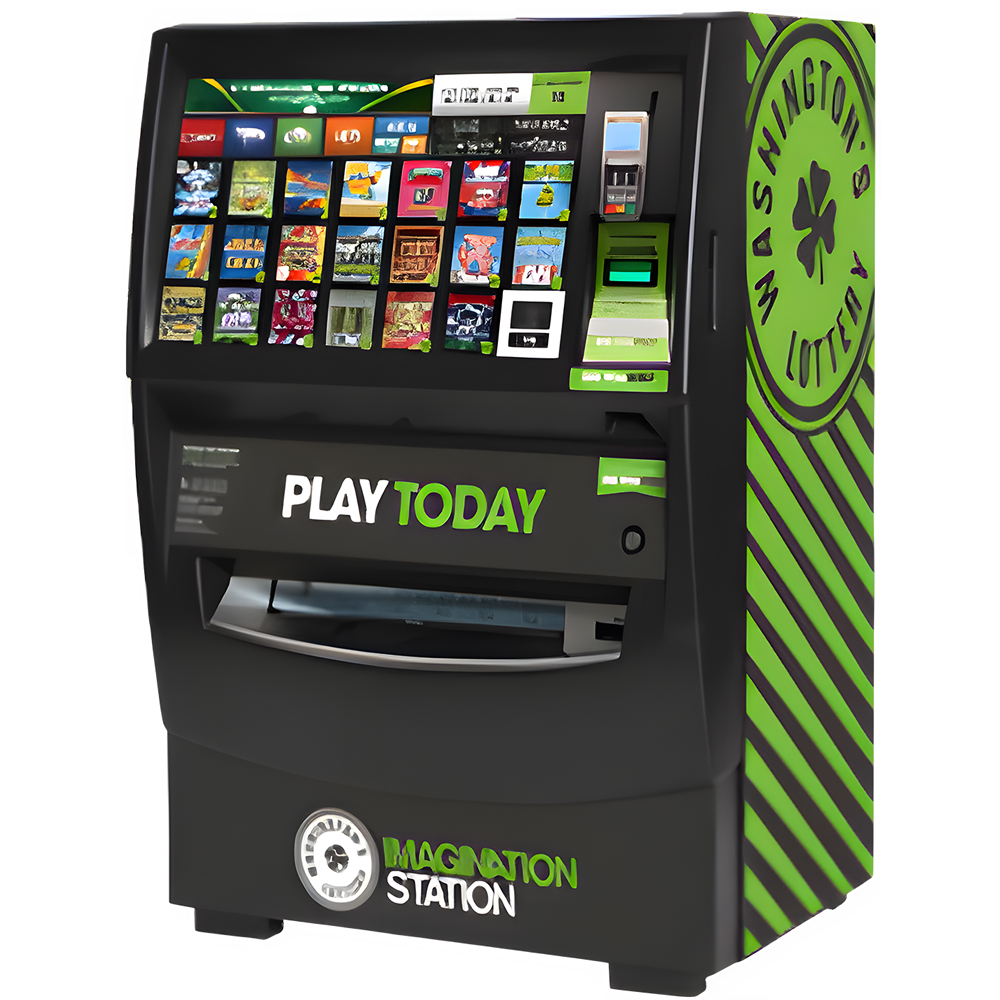
The Game Touch terminal acts as both a Scratch Vending Machine to distribute Scratch Tickets and operates in Self-Service Terminal to perform Draw Game functions. The barcode reader on the GT-24s and GT-28s can be used by players to scan their tickets to see if they are winners, and reinvest their winnings, if they choose to.


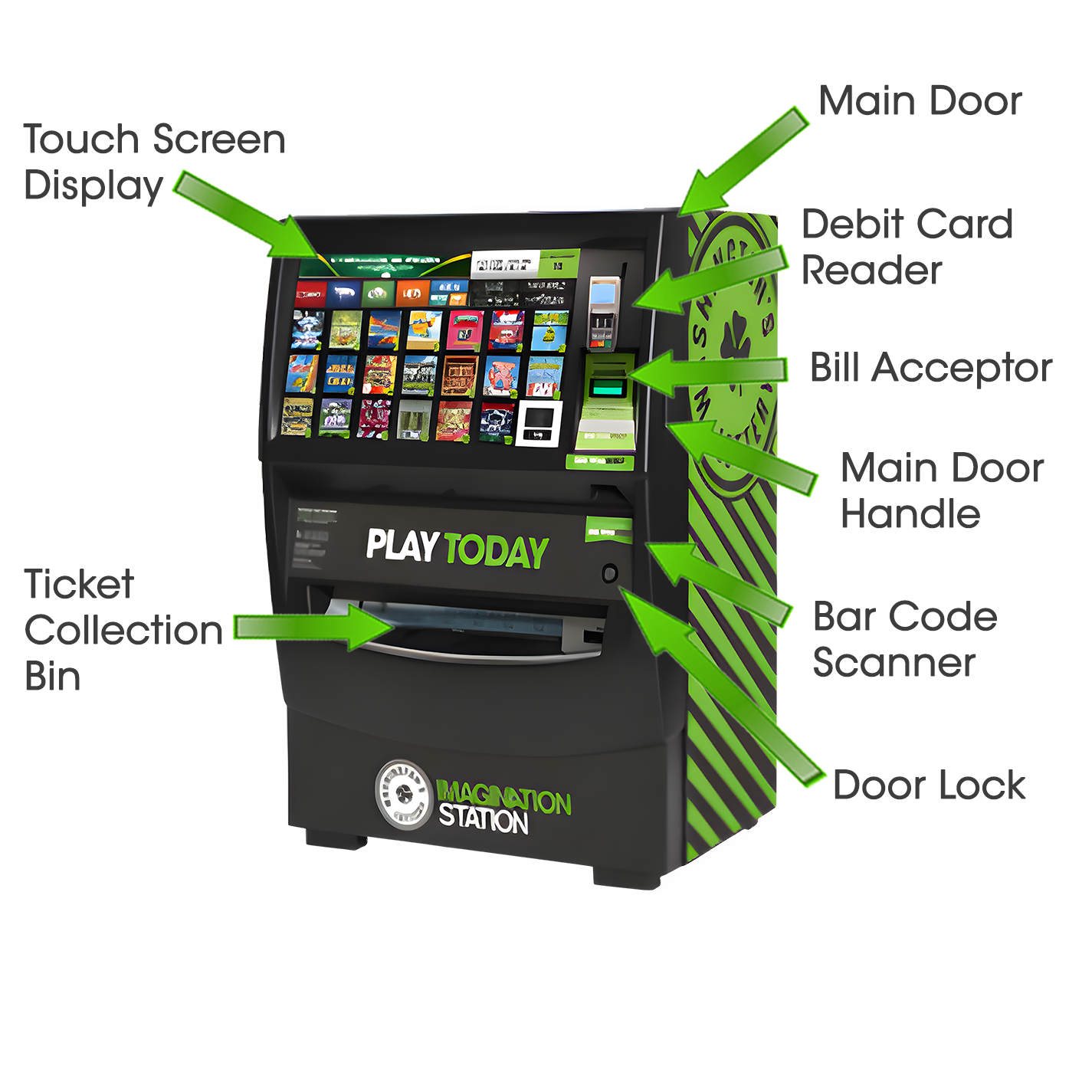
Game Touch Self Service Terminal External View

external view of a gtouch machine

Washington’s Lottery has two (2) different versions of the Gemini Touch Self Service Terminal (SST). The GT24, which has twenty-four (24) bins, and the GT28 with twenty-eight (28) bins.


Opening the Main Door

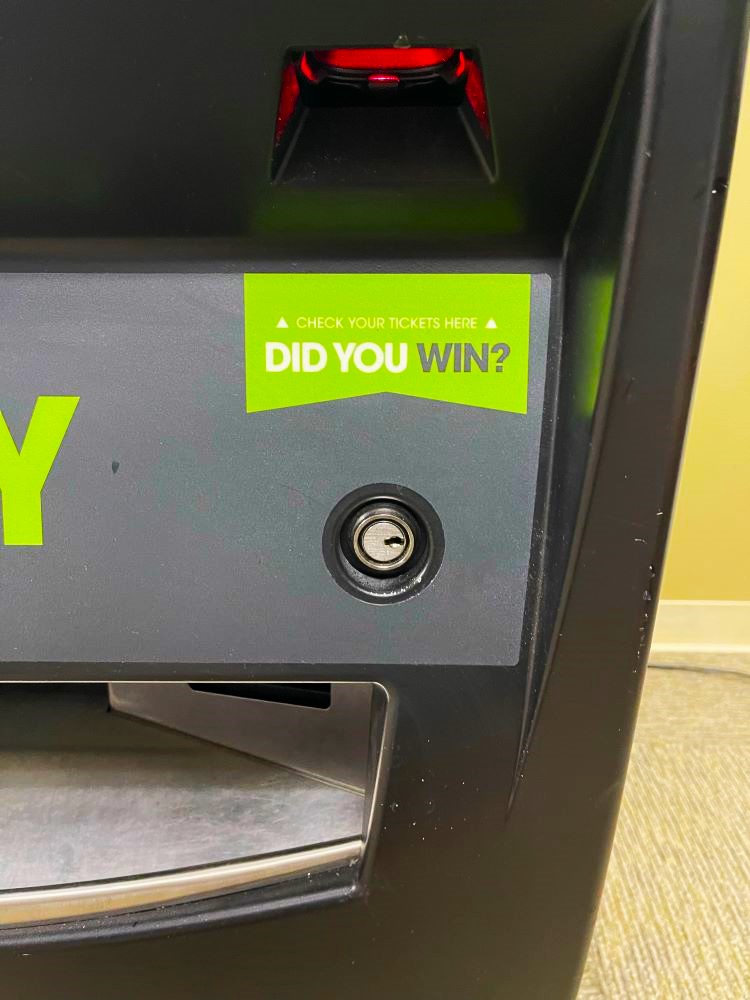
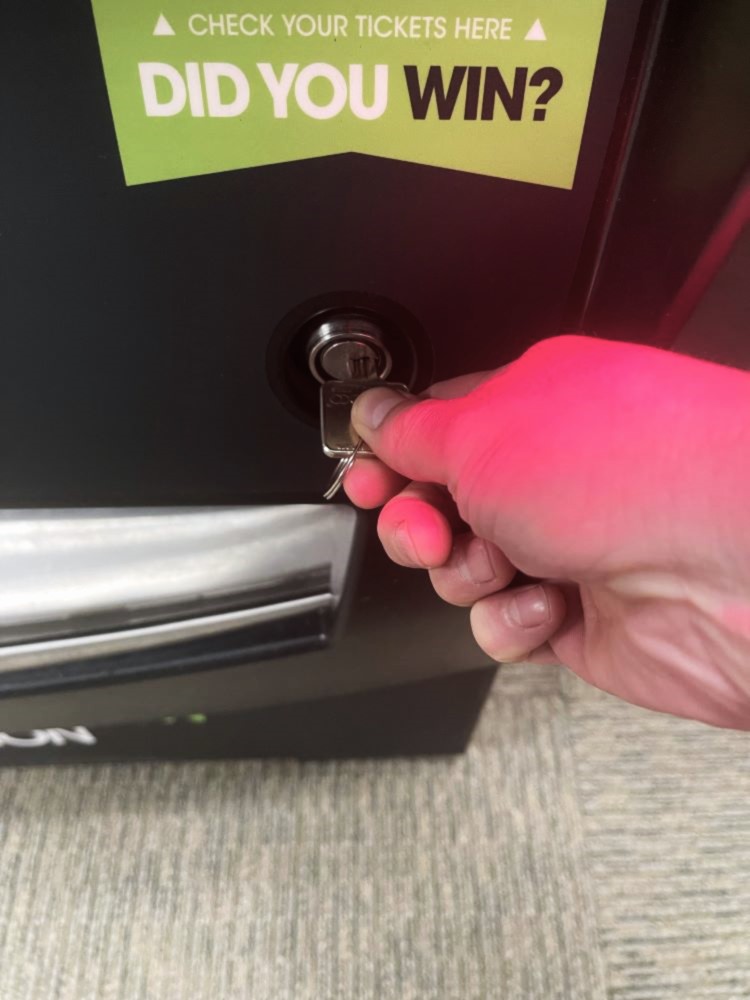
Insert the Main Door (MD) key into the main door lock located on the front of the machine, above the ticket collection bin.

image showing the GTouch Key Lock use the key to unlock the main door and open the gtouch

To open the door, pull up on the lever located on the right side of the door.
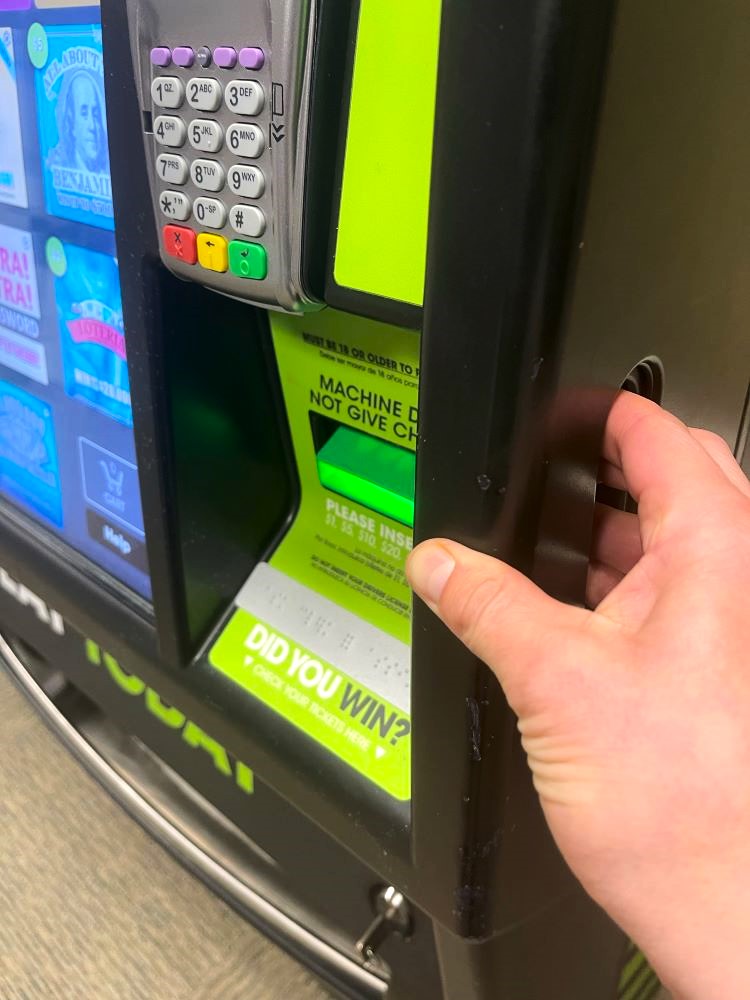
after unlocking, use the lever on the right side of the door and pull up to open

An audible alarm begins soon after the main door is opened. To silence the alarm, the Retailer must press the override button on the side of the terminal board at the bottom of the machine or sign-on to the terminal.
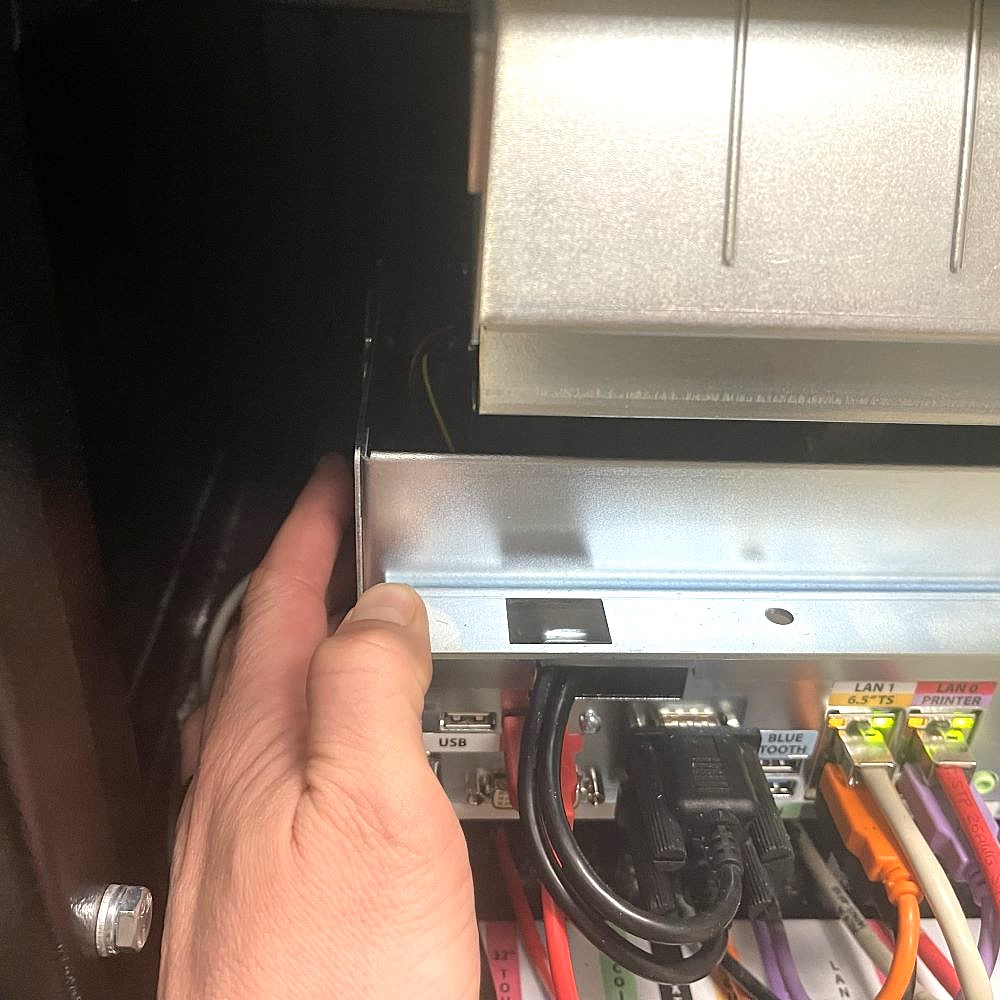
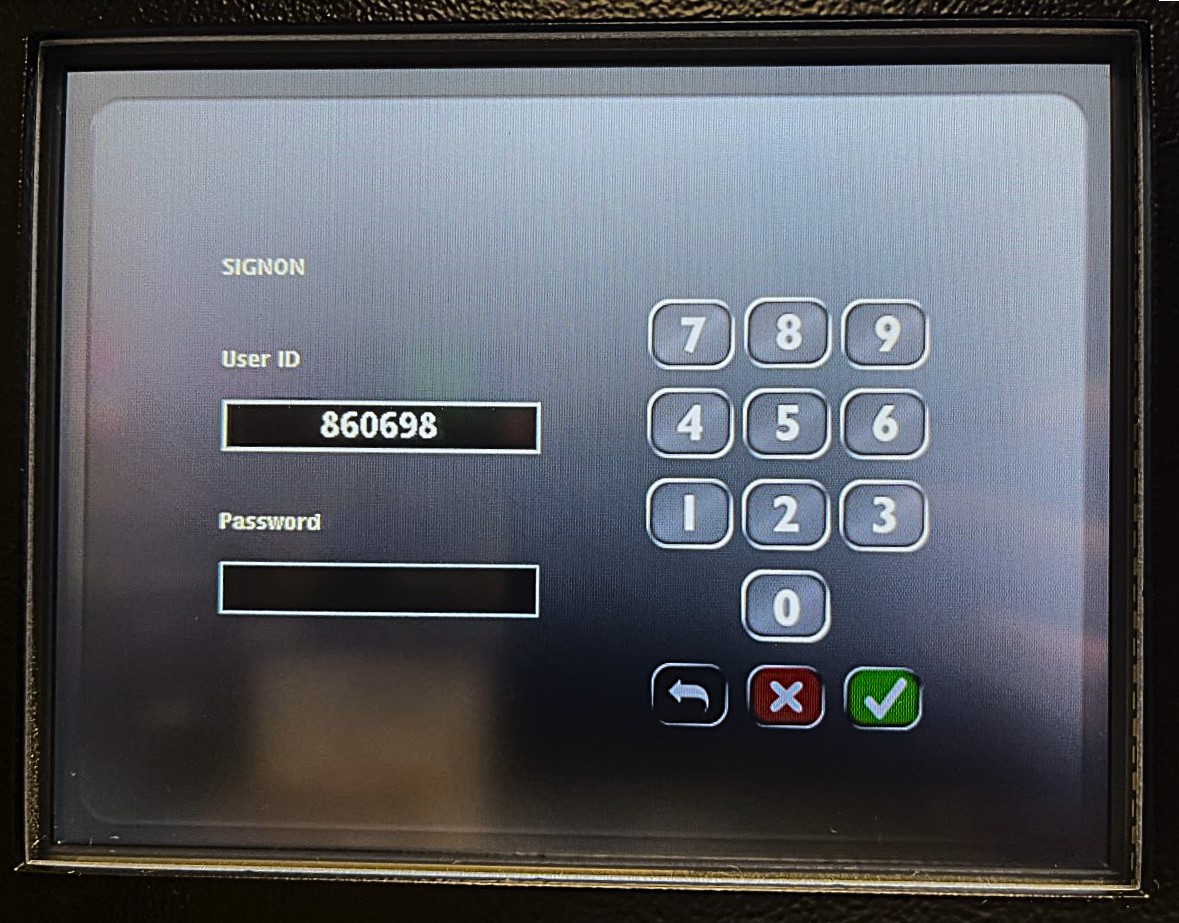
image showing the location of the GTouch Alarm Disarm button GTouch Retailer Log in screen


Retailer Sign-In

After opening  the GT-24 or GT-28 terminal Main Door, the Retailer terminal display  prompts retailers to sign-in.

    • Enter 6-digit Username and 4-digit Password. Touch the GREEN CHECKMARK.
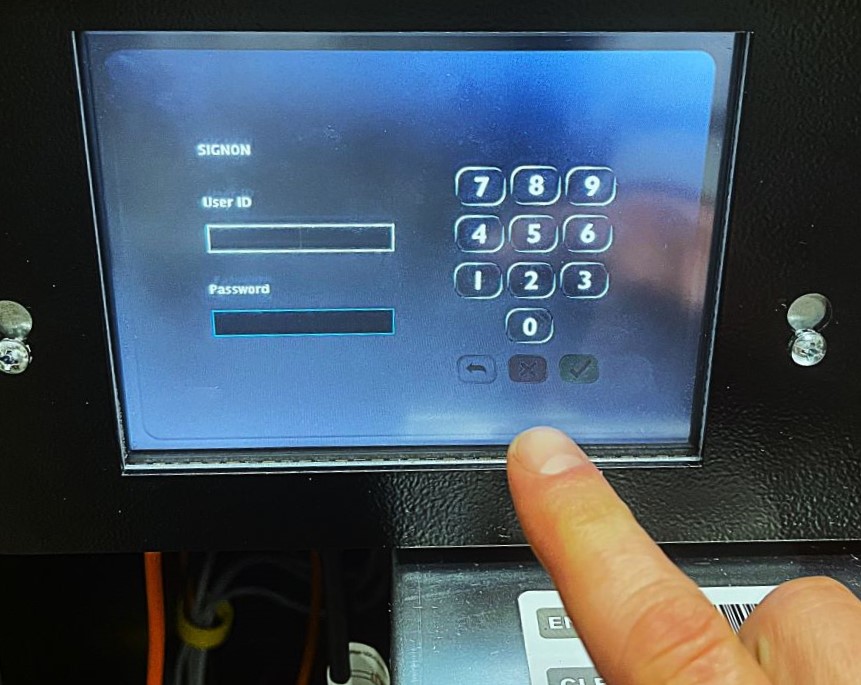

log in using the username and password and then touch the green checkmark

After a successful Sign-In, the Manager Functions Menu will display.


Manager Functions

The Game Touch Home Screen, or Manager Functions Menu, is available once you are signed in. This menu provides access to the terminal management functions.
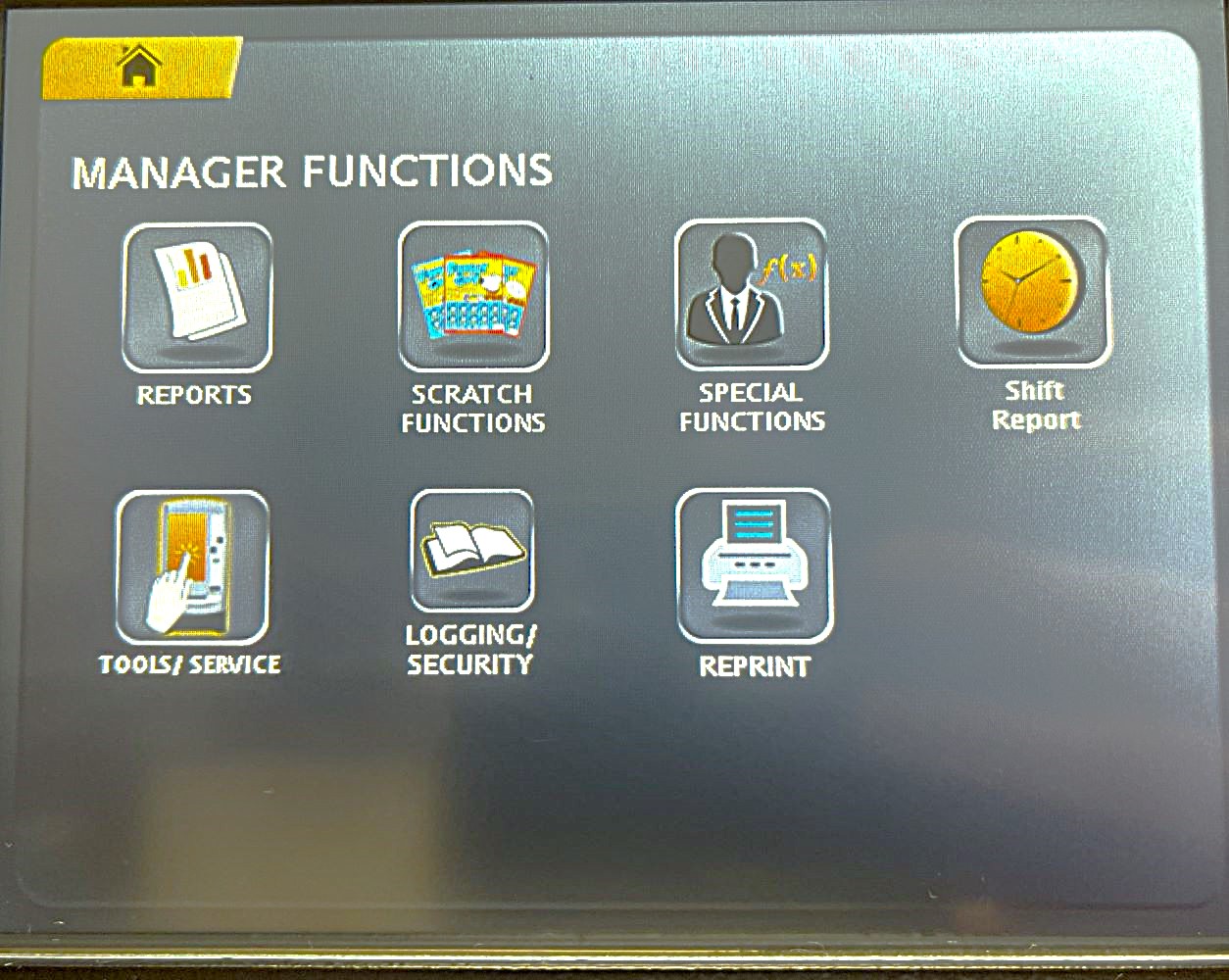
Manager Functions Screen

  • Access this menu from any of the administrative screens by touching the HOME button.
Terminal Settings

Provides general setting options and terminal information.


Accessing Terminal Settings on the GT-1200

Terminal Settings Button  gt1200 main screen with the terminal settings button highlighted Terminal Settings Screen options

Volume

  • Adjust GT-1200 terminal volume
    volume button and sample screen


Language/Lenguaje

  • Change terminal language (English / Espanol / Korean)
    language button and screen showing available languages


Toggle ITVM Alarm

  • Turn terminal alarm On or Off
    toggle itvm alarm button and sample screen


Training On/Off

  • Turn Training mode On or Off (FOR BRIGHTSTAR LOTTERY PERSONNEL ONLY)
    training on off


Printer Test

  • Test Printer
    printer test button and sample of printer test


Sales Rep/FST

  • Display assigned Lottery Representative and Field Service Technician information.
    sales rep and fst sign on button and sign on screen


Printed Sign-On Receipt

  • Turn On or Off automatic Printed Sign-On Receipt
    printed sign on button and sample screen


Terminal Reset

  • Resets terminal
    terminal reset button and confirmation screen


Version Info

  • Displays terminal details
    version info button and sample screen


Instant Showcase Reports

  • For Retailers with a connected Instant Showcase peripheral equipment.
    instant showcase reports button

GT1200 Retailer System Overview


image showing gt1200 Retailer Facing Equipment

Retailer Facing Equipment


GT1200 - Retailer Terminal

image of a gt1200 with arrows pointing to parts of the machine

The GT1200 Retailer Terminal is the primary Lottery POS for all Washington’s Lottery Retailers. It is the central hub for Lottery Sales, Ticket Inventory, and running system reports.


Accutherm Ultra Printer

Accutherm Ultra Printer

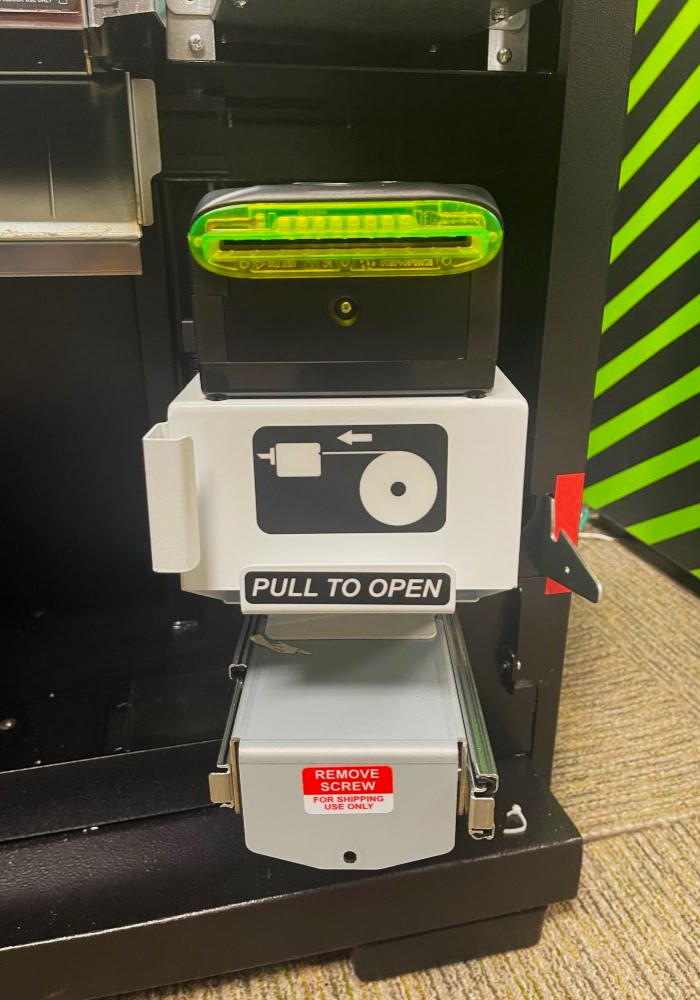
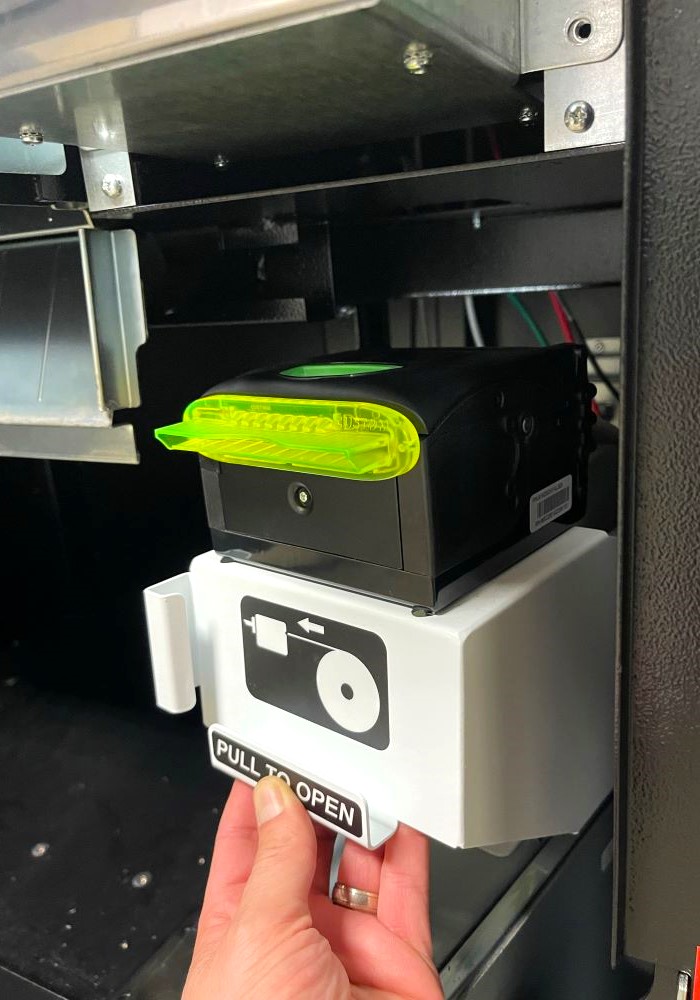
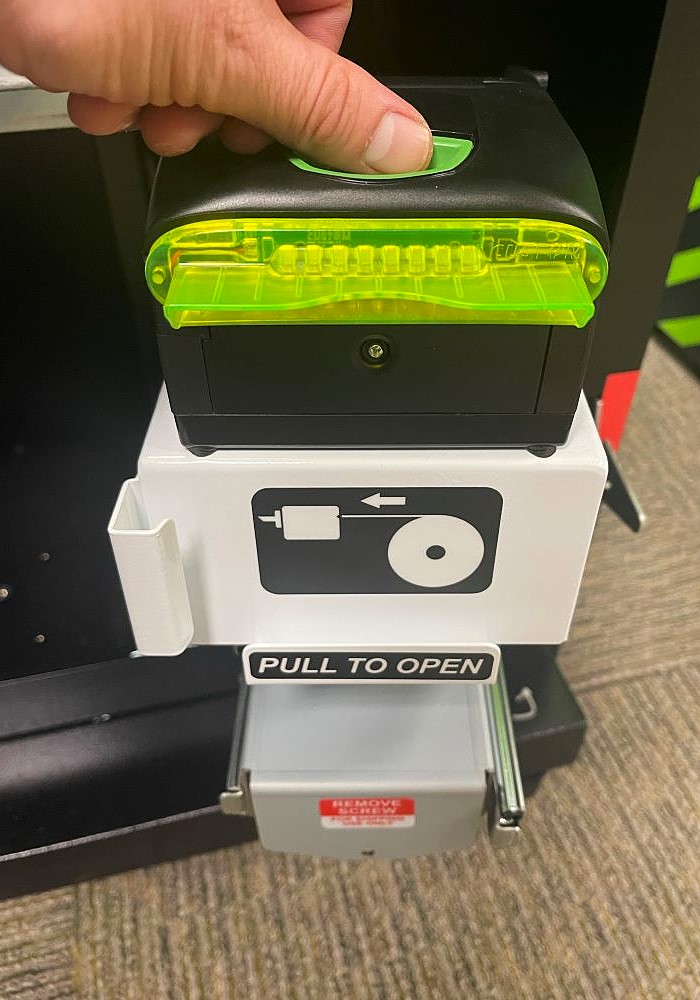
The Accutherm Ultra Printer is used to print tickets, system reports, and various Washington’s Lottery Messaging.


Customer Facing Equipment

image showing Player Facing Equipment for the gt1200


ESMM 22" Retailer Monitor

GT1200 ESMM Retailer Monitor

ESMM Retail Monitors provide customers with their lottery transaction in addition to Draw Game information, promotions, and current Lottery advertising.


Ticket Scanner Plus (TSP)

Customer Ticket scanner

Ticket Scan Plus stations give Retailers and Customers a quick and efficient way to check for Winning Tickets.

Supply Orders

If you would like to order paper rolls, playslips and other supplies, please select the CHAT icon (bottom right corner) and type in Hello or enter Retailer ID to get started.

Available for Order:

  • Play Slips (All Draw Games)

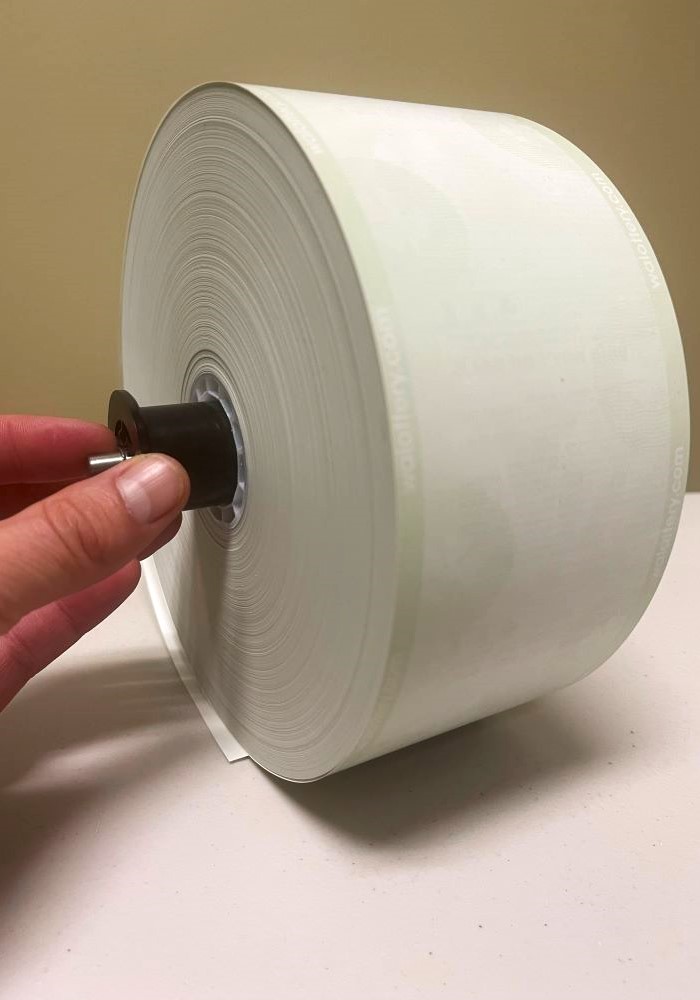
  • Thermal Printer Paper

  • Perforated Tape

image showing a sample of powerball and lotto playslips image showing new rolls of thermal paper for the printer

 - Consumables are typically delivered to retailers within a few days once of the order is placed.


Completing an Online Order

Before Starting an Online Order

Retailers should have the following required information before starting the online supply ordering process.

  1. Retailer ID #
  2. Store Name
  3. Phone Number
  4. Terminal Type (GT-1200 / Game Touch GT-24 or GT-28 / Game Touch G20)

For quick reference, Retailers can download the Supply Orders Quick Tips card by clicking the link below:

Supply Orders Quick Tips Card


Ordering Supplies Online

  1. Begin a new order by selecting the CHAT icon located at the bottom right of any Washington’s Lottery Retailer Self-Service webpage.
  2. Once the chat box is expanded, Retailers must start a new chat, typically with a Hello, or with the Retailers ID number.
  3. The Chatbot will ask if you would like to talk to a live agent or begin a supply order.  Select SUPPLY ORDER.
  4. Retailers will be sent a chat including a link to the Supply Order Form. Click SUPPLY ORDER FORM link
    1. Retailers can select NO if no additional help is needed or continue chat communication by selecting MORE HELP.

chat icon image showing a sample chat to reorder supplies  chat sample zoomed in to show link to the supply order form


Consumable Supply Order Form

  1. After clicking the Supply Order Form link, Retailers will be guided to a new webpage.  The first screen provides Retailers the ability to select a different language for the form. Once the preferred language is selected, click START NOW.
    sample of the online supply order form start page
  2. Complete the form with the REQUIRED INFORMATION and click NEXT.
    fill in the order form with the required information and click next

  3. Using the pull-down options, Retailers will be asked to enter the inventory levels for only the supplies being ordered. Click NEXT.

Page 47 of 48

  • 39
  • 40
  • 41
  • 42
  • 43
  • 44
  • 45
  • 46
  • 47
  • 48

Recently Published

  • Training Blitz: Jan - Mar 2026
  • 2026 Trainings
  • Training Videos
  • Current Training
  • Previous Trainings

Recently Modified

  • Instant Ticket Procedures Content
  • Settlement
  • Activation
  • Receive
  • Customer Ticket Checker