
Supply Orders
If you would like to order paper rolls, playslips and other supplies, please select the CHAT icon (bottom right corner) and type in Hello or enter Retailer ID to get started.
Available for Order:
-
Play Slips (All Draw Games)
-
Thermal Printer Paper
-
Perforated Tape
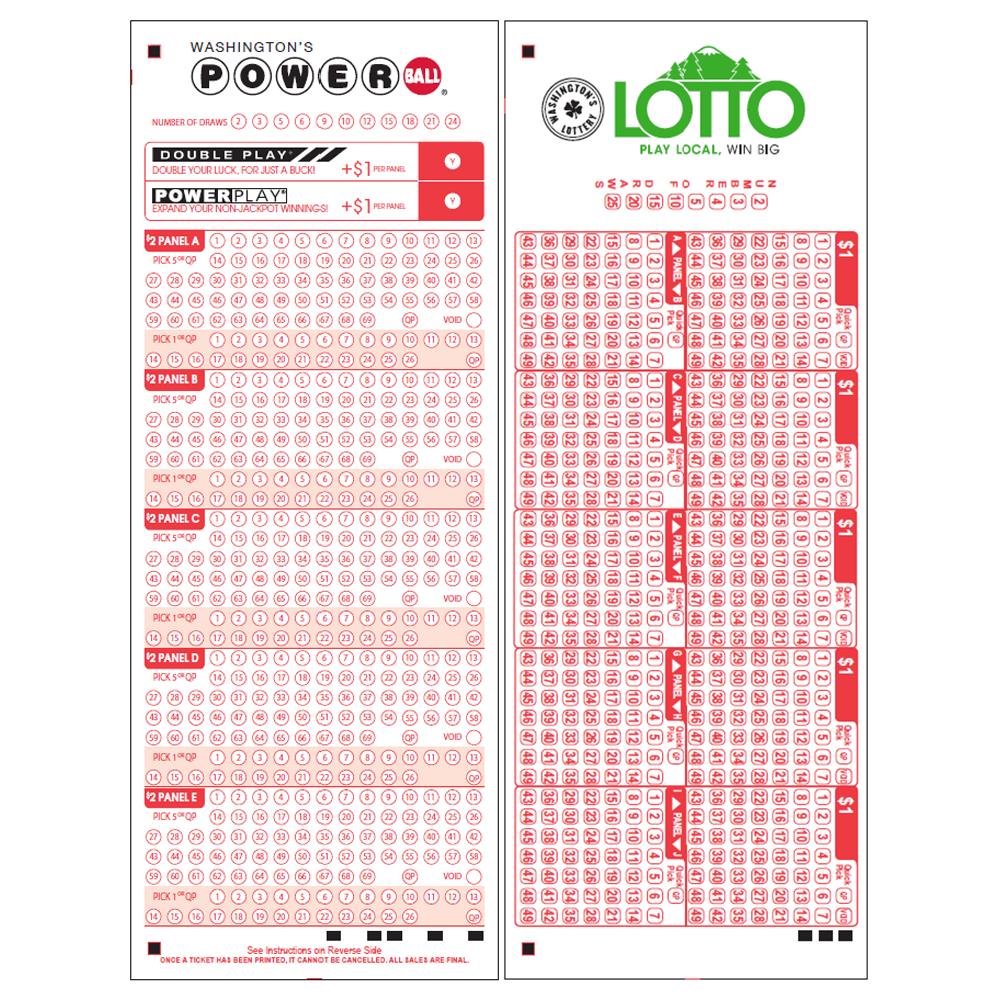
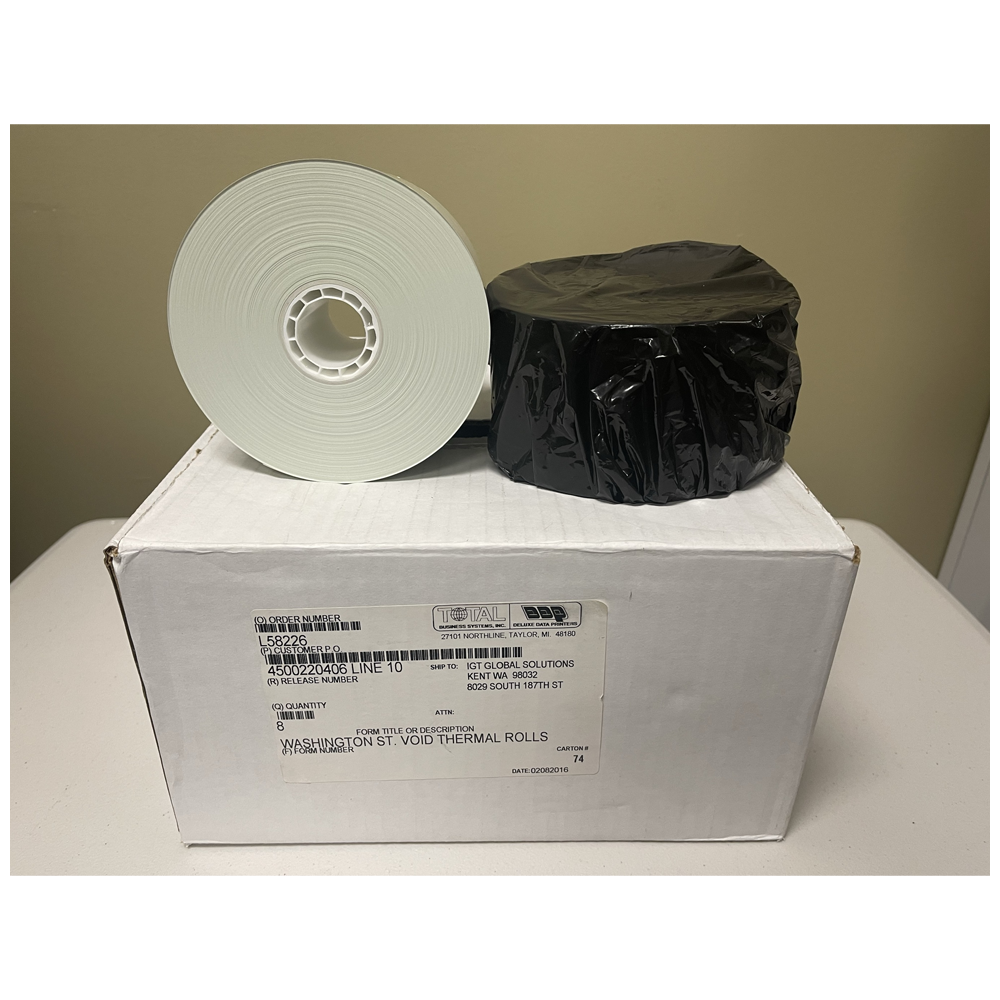
- Consumables are typically delivered to retailers within a few days once of the order is placed.
Completing an Online Order
Before Starting an Online Order
Retailers should have the following required information before starting the online supply ordering process.
- Retailer ID #
- Store Name
- Phone Number
- Terminal Type (GT-1200 / Game Touch GT-24 or GT-28 / Game Touch G20)
For quick reference, Retailers can download the Supply Orders Quick Tips card by clicking the link below:
Ordering Supplies Online
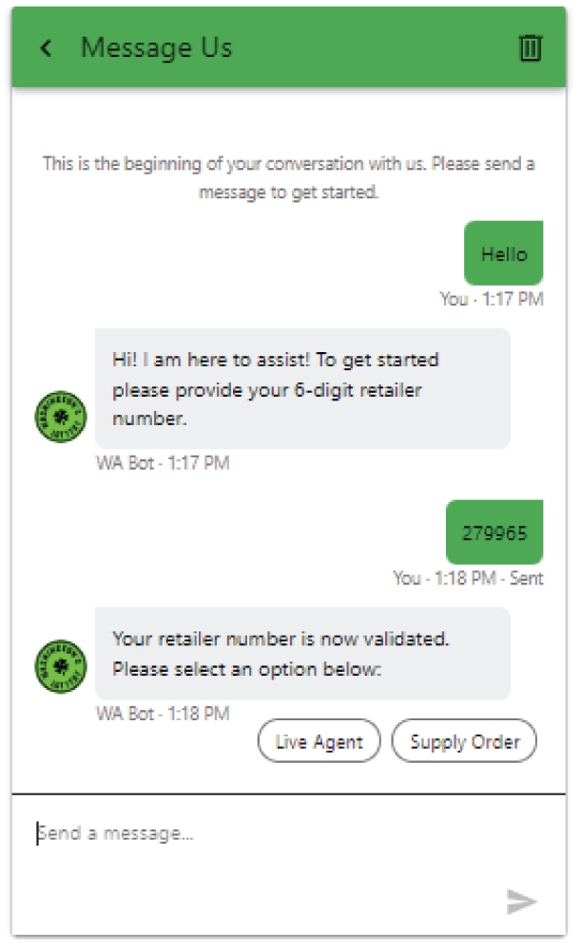
- Begin a new order by selecting the CHAT icon located at the bottom right of any Washington’s Lottery Retailer Self-Service webpage.
- Once the chat box is expanded, Retailers must start a new chat, typically with a Hello, or with the Retailers ID number.
- The Chatbot will ask if you would like to talk to a live agent or begin a supply order. Select SUPPLY ORDER.
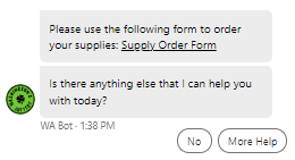
- Retailers will be sent a chat including a link to the Supply Order Form. Click SUPPLY ORDER FORM link
- Retailers can select NO if no additional help is needed or continue chat communication by selecting MORE HELP.

Consumable Supply Order Form
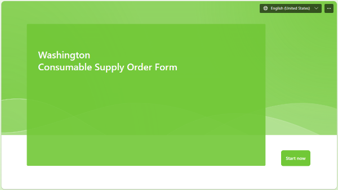
- After clicking the Supply Order Form link, Retailers will be guided to a new webpage. The first screen provides Retailers the ability to select a different language for the form. Once the preferred language is selected, click START NOW.
-
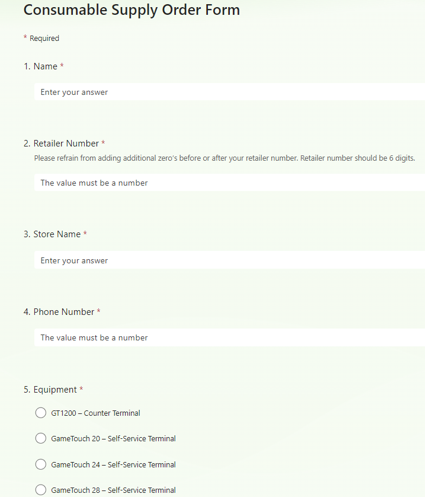
Complete the form with the REQUIRED INFORMATION and click NEXT.
-
Using the pull-down options, Retailers will be asked to enter the inventory levels for only the supplies being ordered. Click NEXT.
Ticket Checker Troubleshooting
-
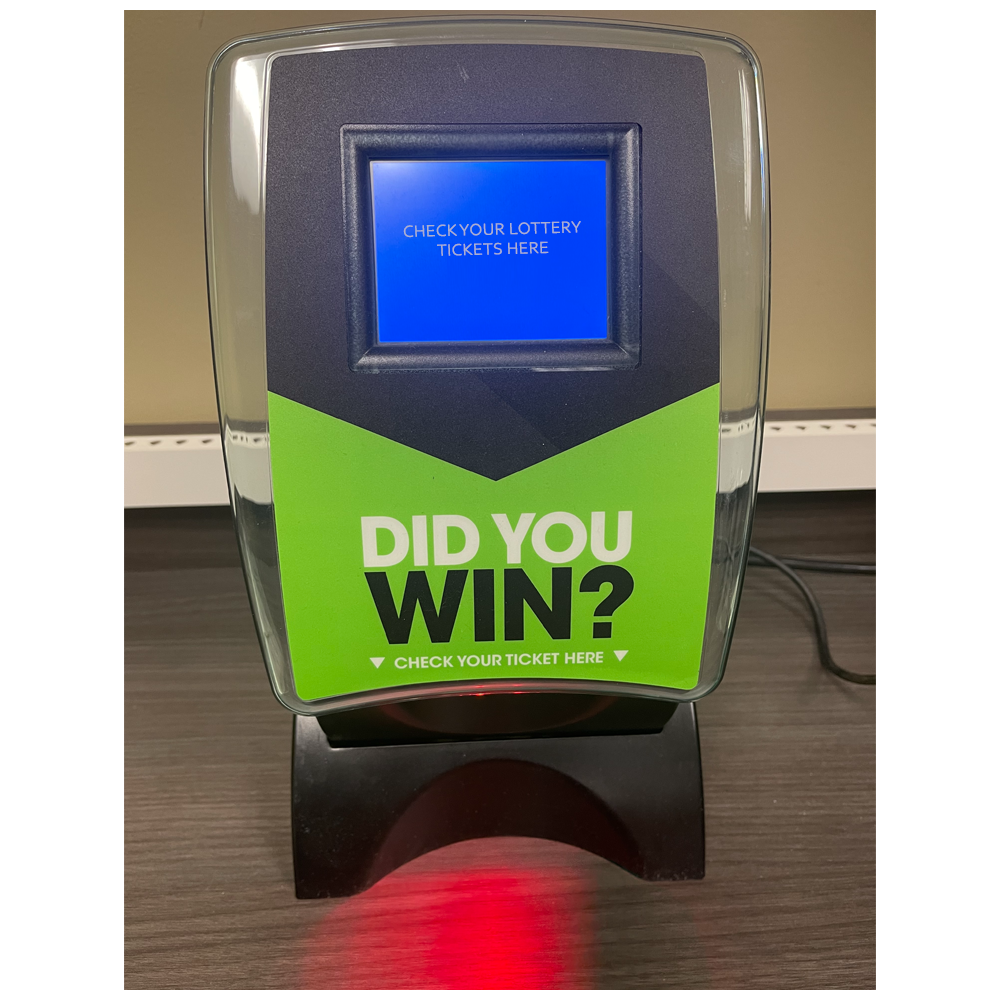
Verify what ticket checker display screen is showing.
-
Verify a RED light (beam) is showing on the barcode read area.
-
Check ticket checker for jammed tickets, which can cause error messages or make ticket checker unable to scan tickets.
-
Power reset ticket checker by locating ticket checker power cord and unplugging it from wall - wait 10 seconds then plug back in.
-
If ticket checker is still not working - reset terminal by one of the following methods:
-
Hold down the power button located on the top right of the screen for 15 seconds until the light turns yellow.
-
Press and release again to restart.
-
-OR-
-
Unplug the terminal power cord from the wall for 15 seconds and then plug back in
-
-
Test ticket checker by scanning ticket.
Barcode Scanner Troubleshooting
- Ensure that the ticket being scanned has not expired and is legitimate.
- Check the condition of ticket barcode to ensure it is not damaged or misprinted.
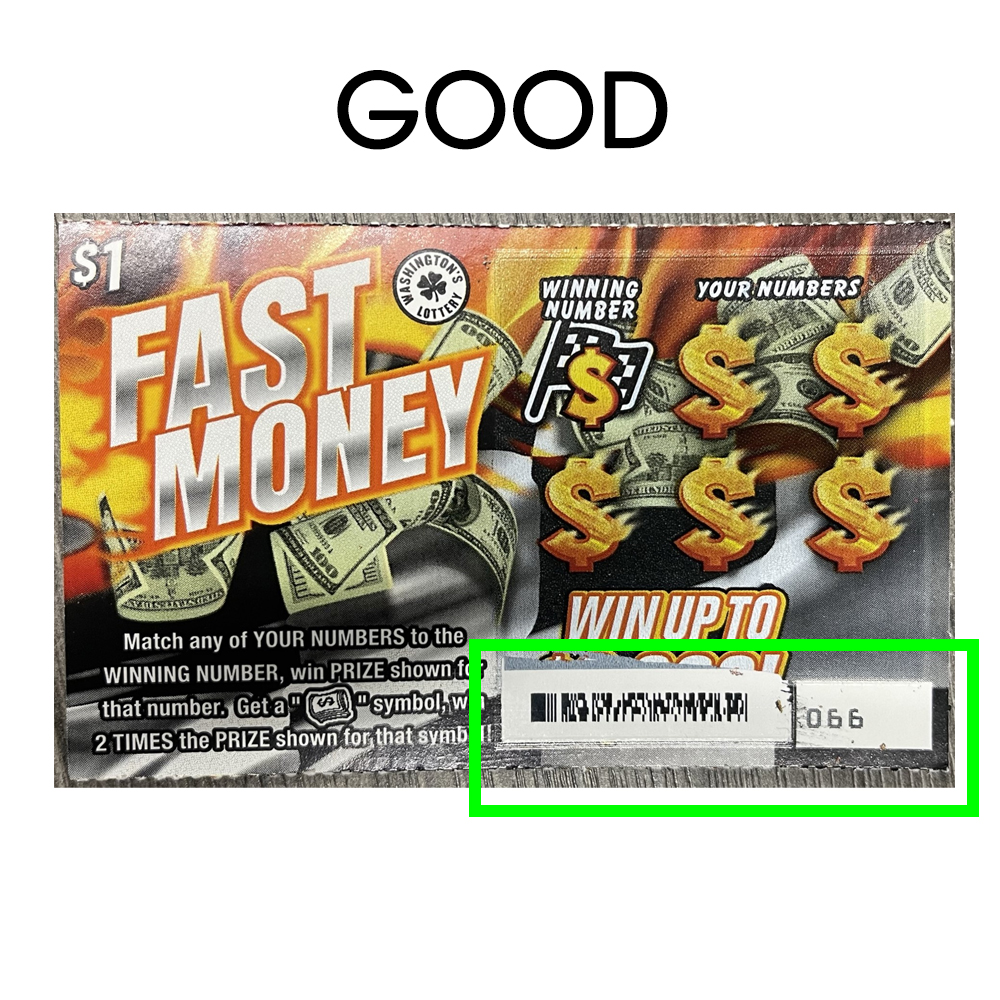
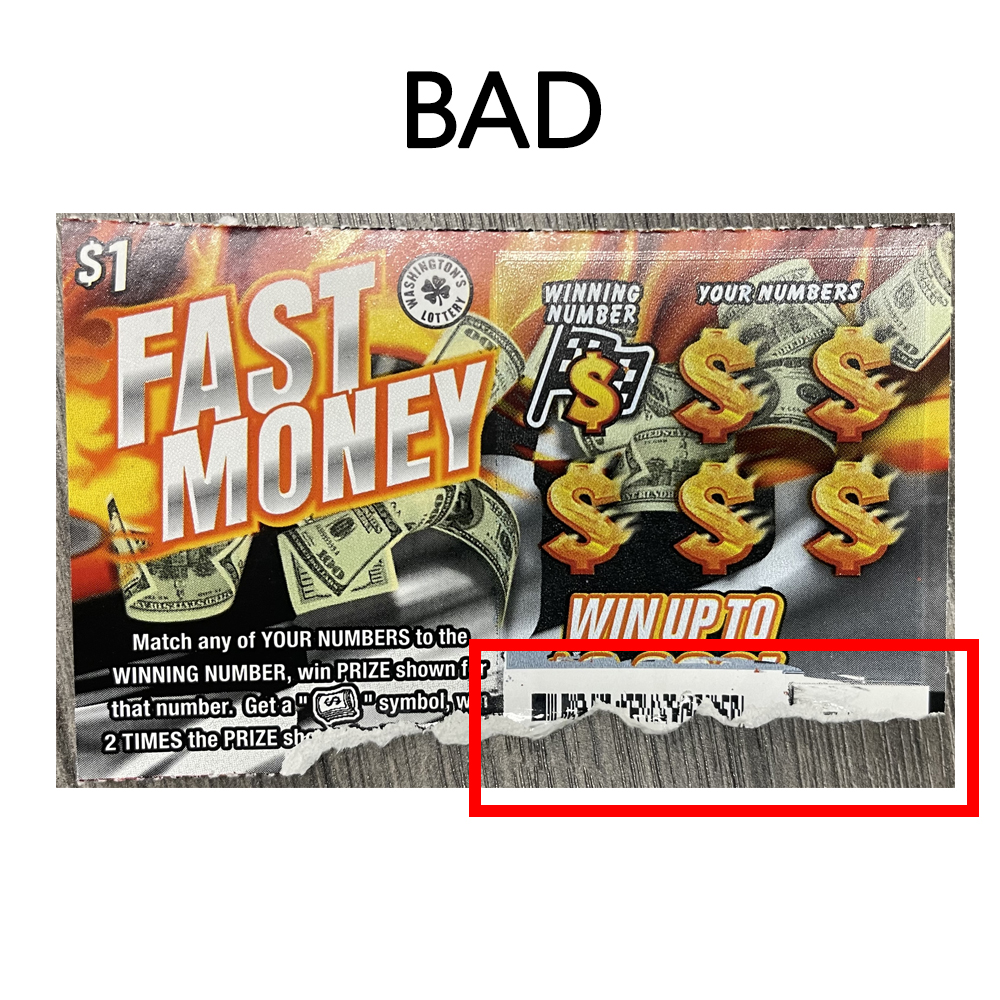
- Depending on the size of the barcode the ticket may need to be held closer or farther away. The ticket should be raised or lowered under the beam until the barcode registers.