
Self Service Terminals : Shopping Cart Feature
In 2022 Washington’s Lottery added the Shopping Cart feature to all Self-Service Terminals. Rather than making individual game purchases one by one, this functionality allows players to build a virtual “Shopping Cart” on the machine before making their final purchase.
Adding Games to the Shopping Cart
- Select Game - From the terminal Home screen, players will select their desired game.
- Game Quantity – Once a game is selected the player will be brought to that game’s purchase screen. On this screen, the player can select the quantity of Scratch tickets wanted and/or Draw game specifics such as number of tickets, draws and select numbers.
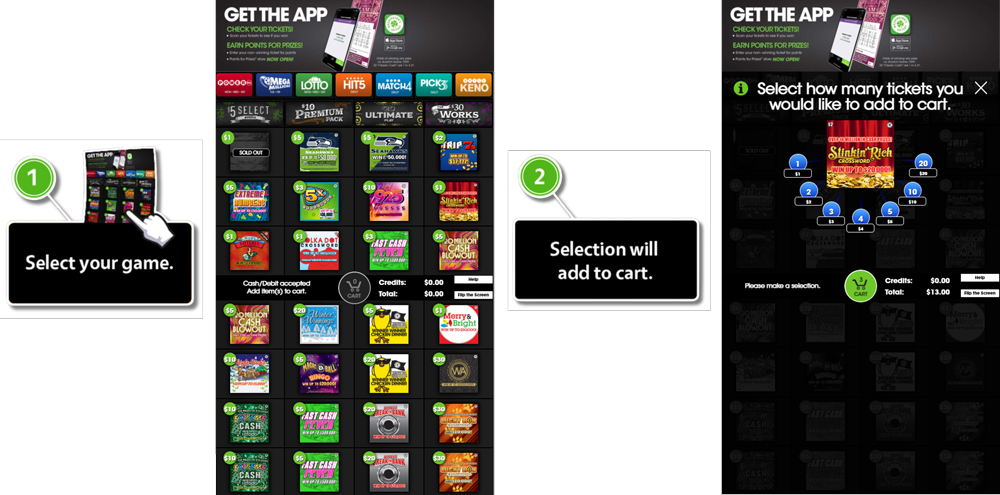
- Once a player’s desired game is selected it will be added to the Shopping Cart.

Shopping Cart Screen
At any time after a product is selected, Players can view their active Shopping cart by pressing the shopping cart button.
This will bring them to the Shopping Cart screen where the player can review their desired purchases and make last minute changes, such as quantity or deleting an item.
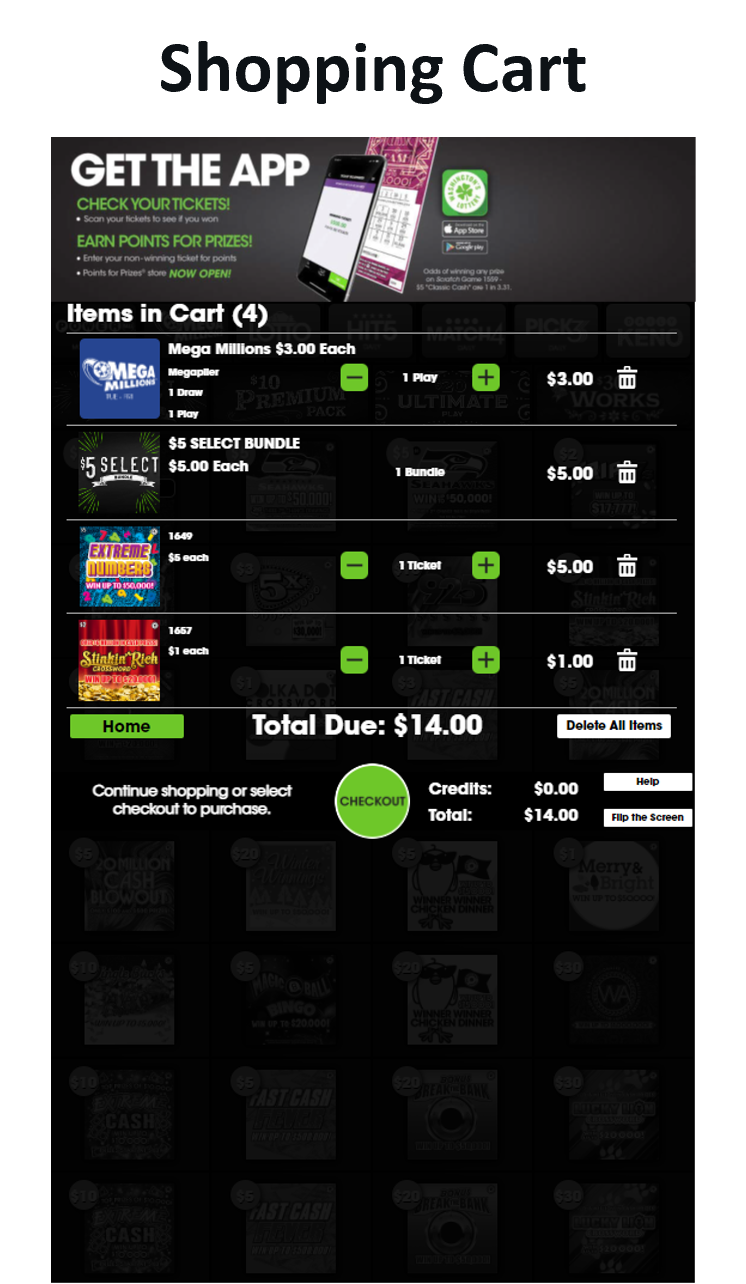
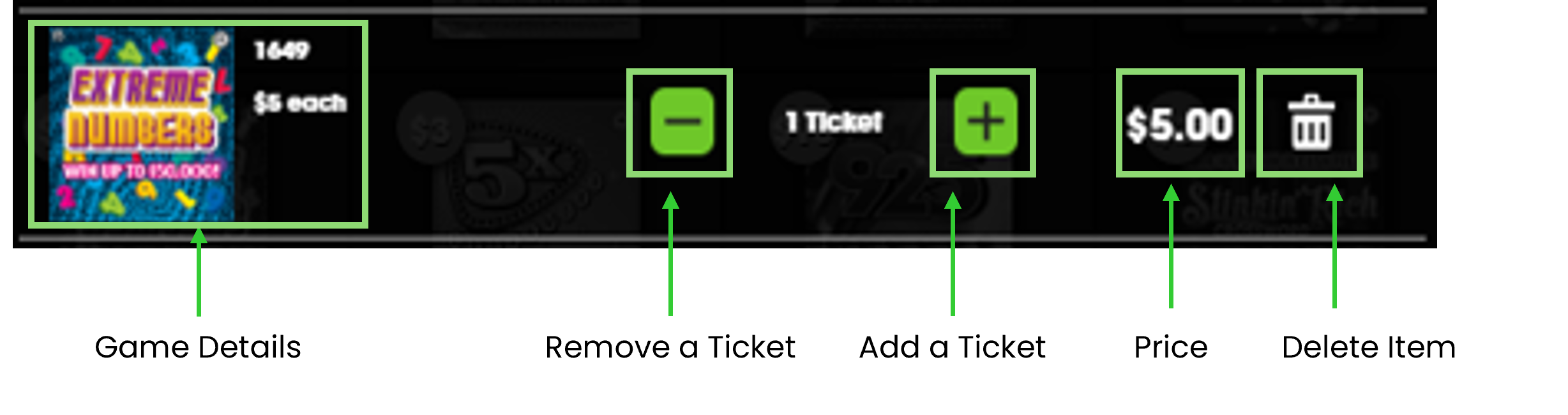
After the Player verifies their shopping cart is correct, they can press “CHECKOUT” to proceed to Payment Method options.

Select Payment Method
In the Payment Method options screen, the Player can choose to complete their transaction by either paying with Cash [Or Reinvested Winnings], or with Debit.
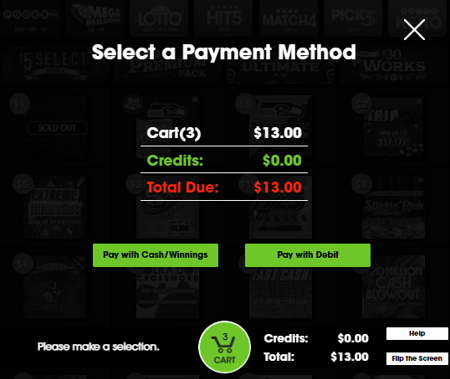
PLEASE NOTE: Players must select Cash OR Debit. Purchases can not be made using both methods. If Cash was inserted prior to Checkout the “Pay with Debit” button will be unavailable for selection.
Payments with Cash/Winnings
If using Cash, Players will be directed to enter the amount shown in their cart.
NOTE: If using previous/reinvested winnings, the amount entered will show as available Credits and Debit will not be available.
For more information on Validations and Reinvestments, click link:
GT-24/28 TICKET VALIDATIONS & REDEMPTIONS PAGE
Once the transaction is completed, players can collect their tickets from the vending machine tray.
Payments with Debit
For Directions on how to use Debit on the GT-24/28 Terminals, click link:

Shopping Cart
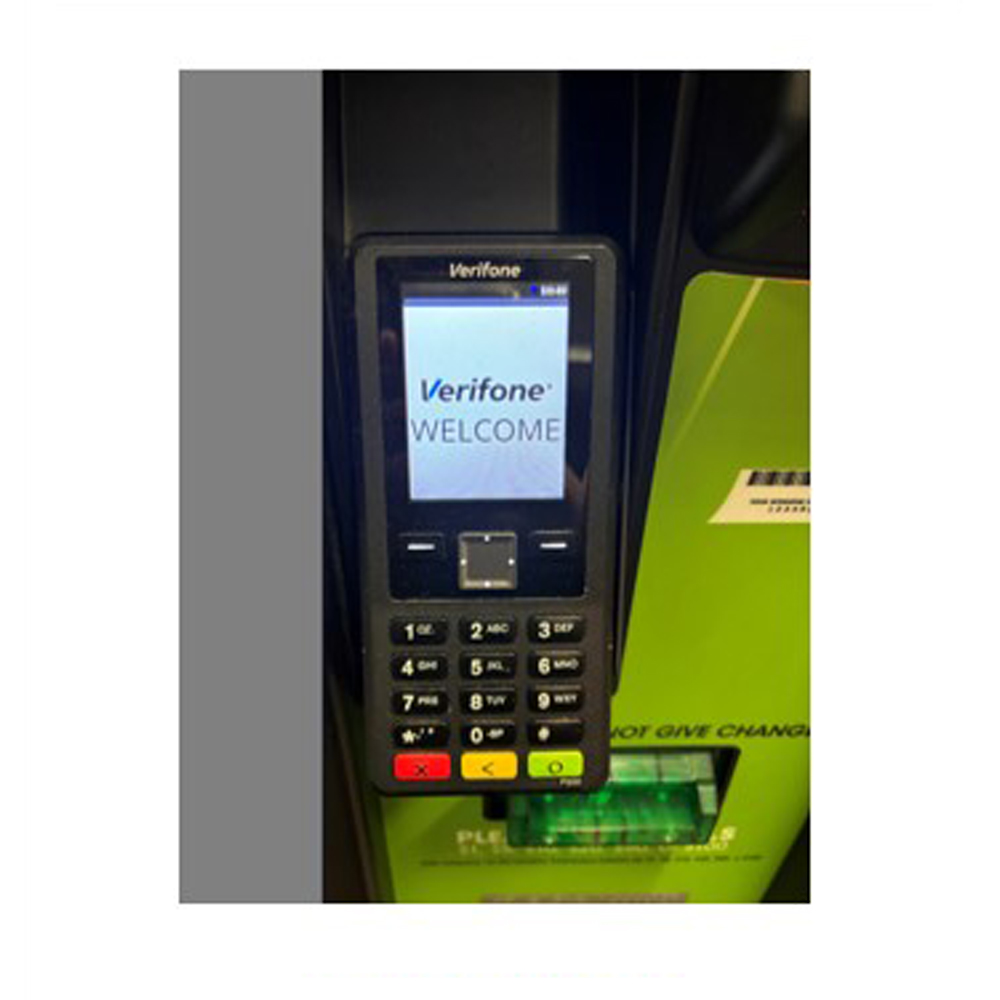
Debit Card
Purchases
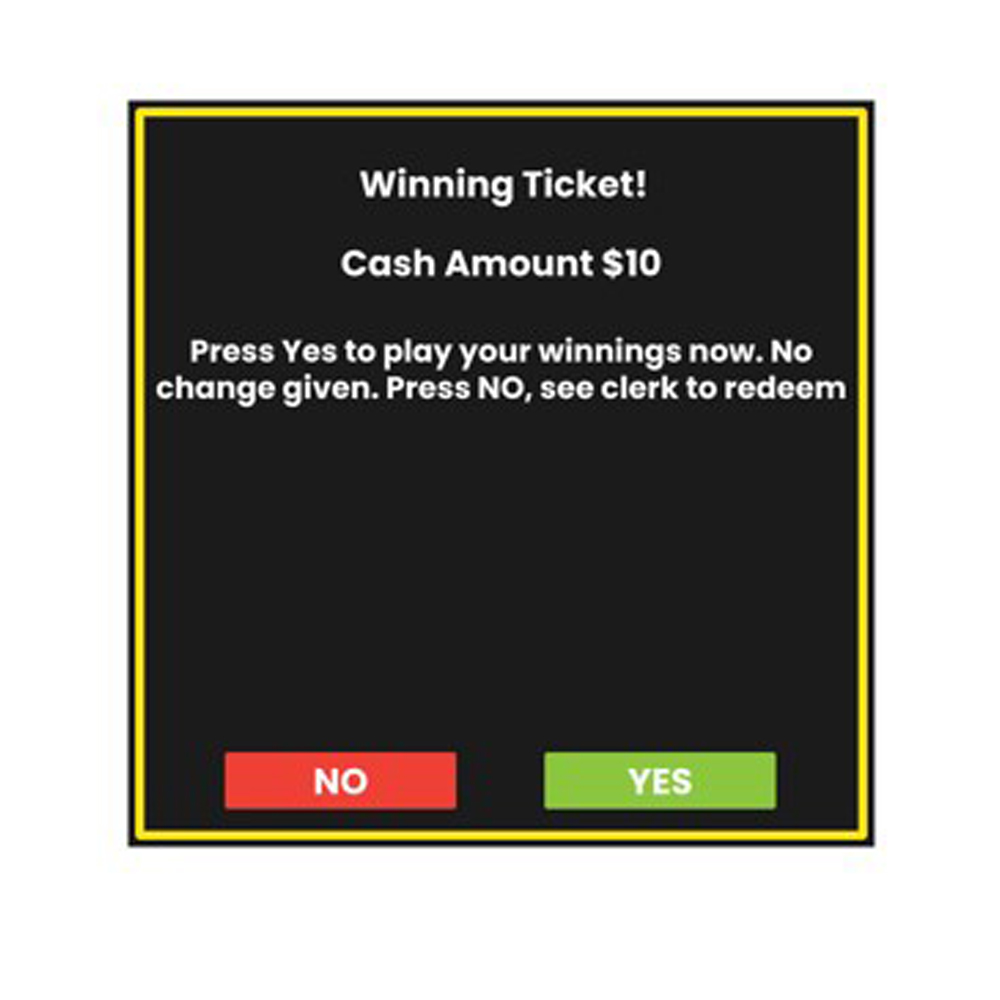
Ticket Validations
& Redemptions
Order Supply Screen
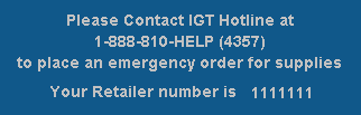
When a Retailer accesses the Order Supply screen on the GT-1200 they will be guided to call Brightstar Lottery’s Hotline to place emergency supply orders.

Order Supply Screen
NOTE: Retailers can also place supply orders using this Retailer Self Service website by pressing the ChatBox button “ “ in the bottom right of the screen, or going to the Supply Order webpage: SUPPLY ORDERS
News Screen
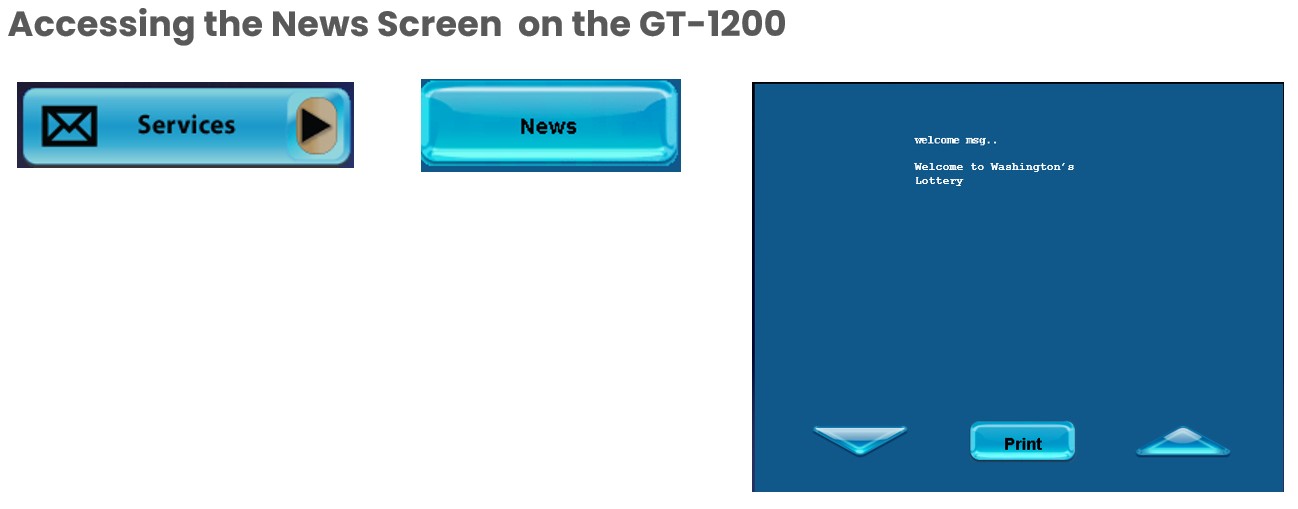
The News Screen will display the message that is shown when Retailers first log into the GT-1200 terminal.
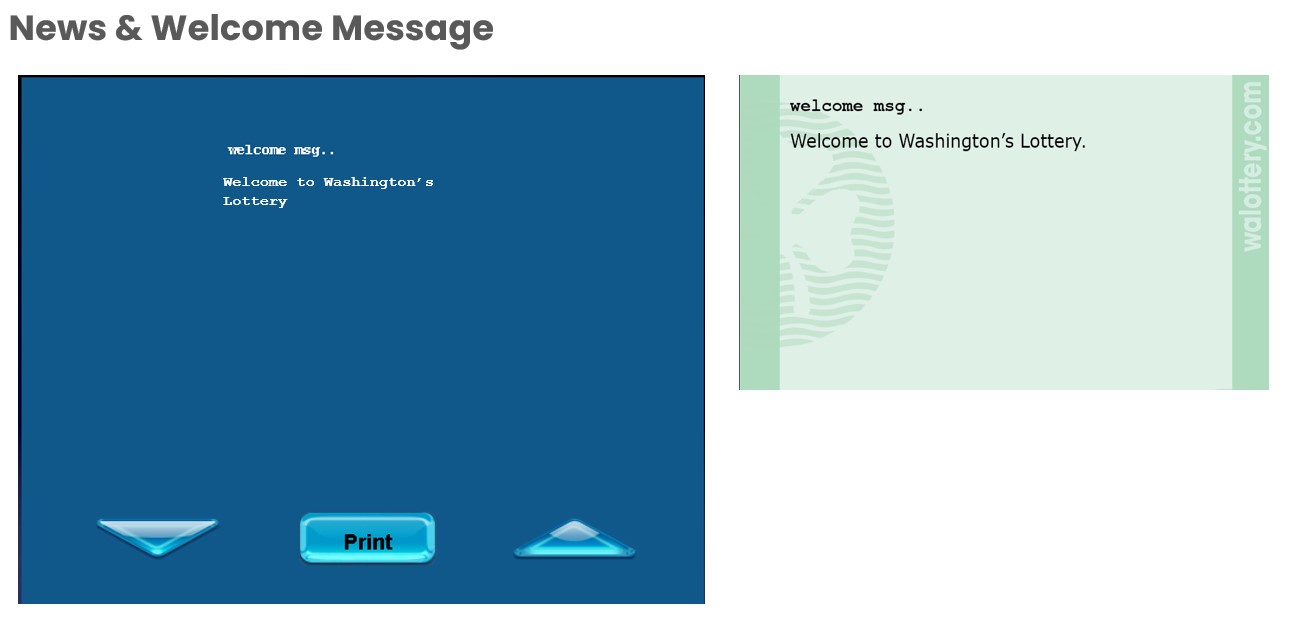
NOTE: Retailers can print the News and Welcome Message. Printing the News messages may be helpful for Retailers when passing communication to other employees.