
Welcome to the Washington's Lottery Retailer Self-Service Portal!
Supply Orders
GT1200 Terminal &
Equipment
Self Service Terminals
(SSTs)
Retailer Resources
Common Reports

Daily Tasks
Cash Log Reports
The Cash Log report provides an overview of all terminal transactions and the dispensing status for each transaction.
Accessing the Cash Log Report using the Self-Service Terminal Functions Manager.
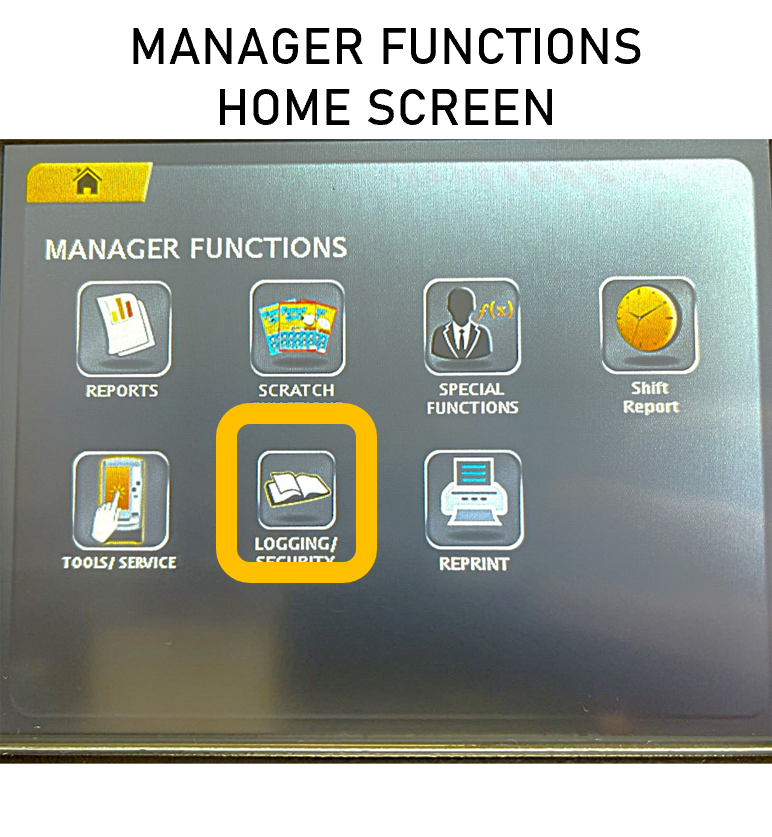
From the Terminal Functions Manager main menu, press the Logging / Security Journaling button.

The Journal screen will appear. Select the desired date for the report to be generated; the current day will automatically be shown. Press the CASH button on the left side of the report display box to run the report.
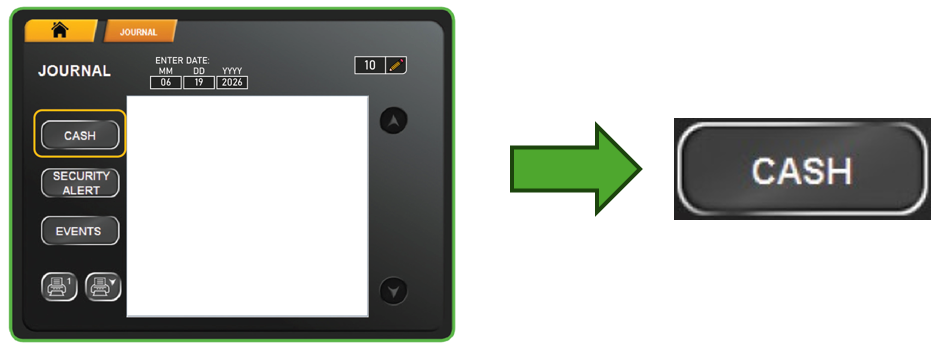
Note: By default, the Cash Log shows the last 10 transactions in the order they occurred. Using the pencil icon button in the upper right-side of the Journal screen, this number can be increased to 1000 transactions, as needed.
Cash Log Report Overview
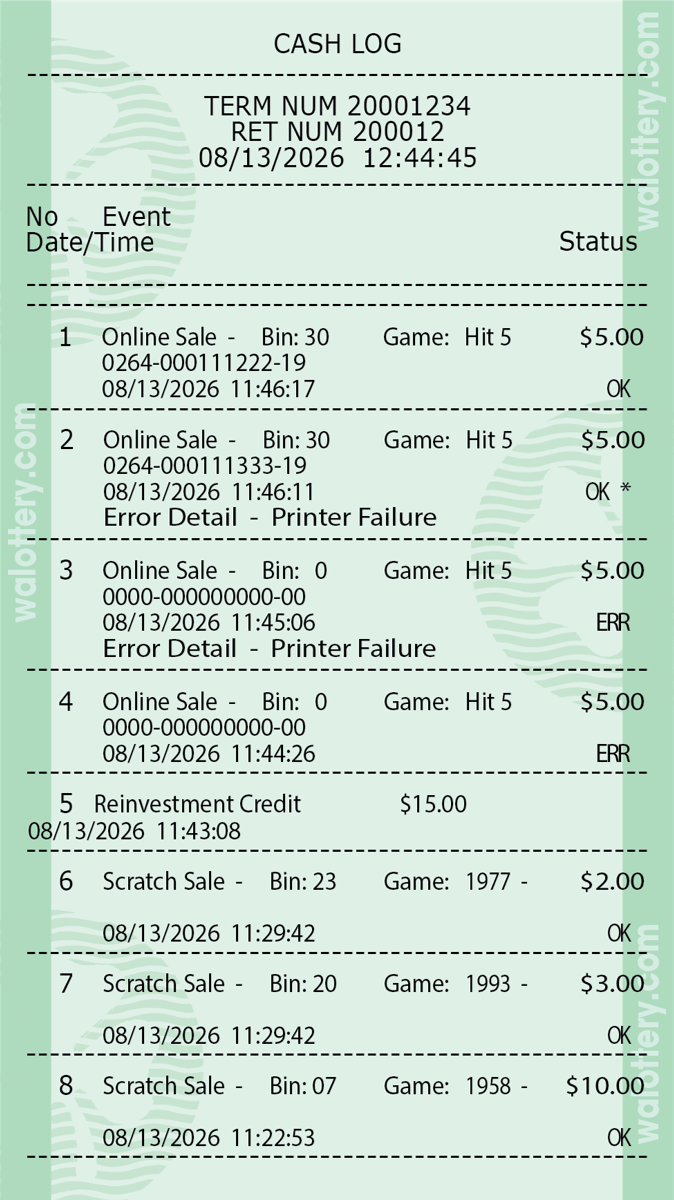
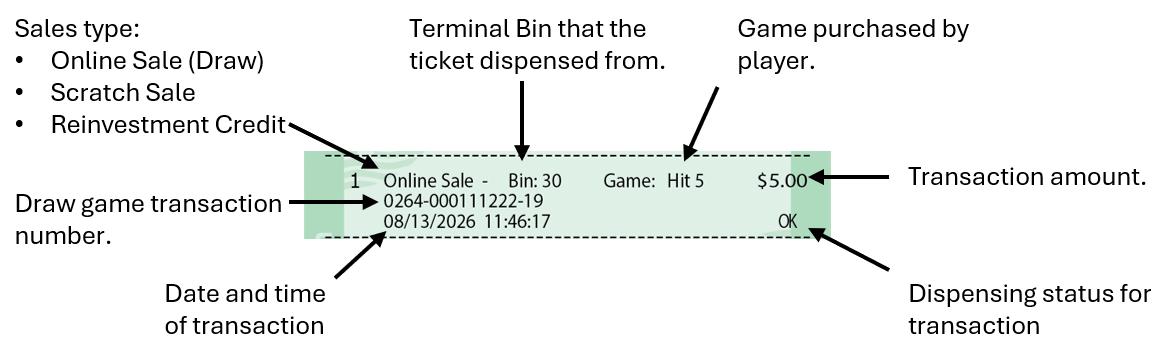
Reading the Cash Log Report
Identifying an Error on the Cash Log Report
In some situations, the self-service terminal may have a dispensing error. This can occur for various reasons – for example: a ticket gets jammed in a bin roller or stuck when falling to the ticket collection bin at the bottom of the machine.
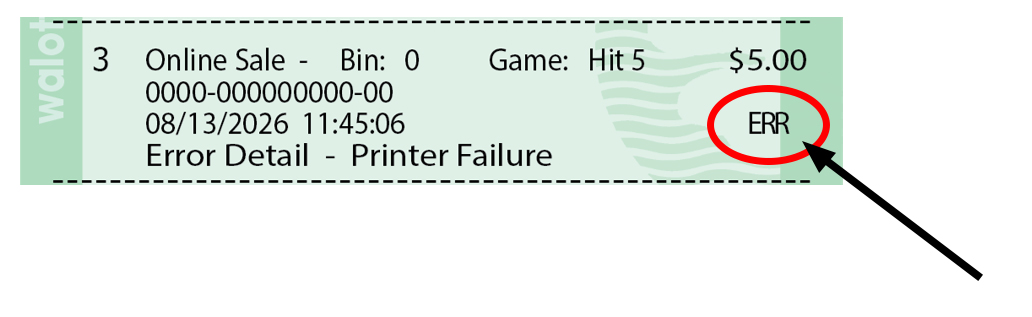
When an error occurs, the Cash Log report will indicate the dispensing incident with “ERR.
Refunding Players - No Credits on Terminal
Before refunding a player, Lottery retailers should always pull the Cash Log to verify the transaction in question.
To access the Cash Log, Retailers will use the Manager Functions system.
- On the Manager Functions home screen, press Logging / Security

- After accessing the Logging / Security screen, press CASH to run a complete Cash Log
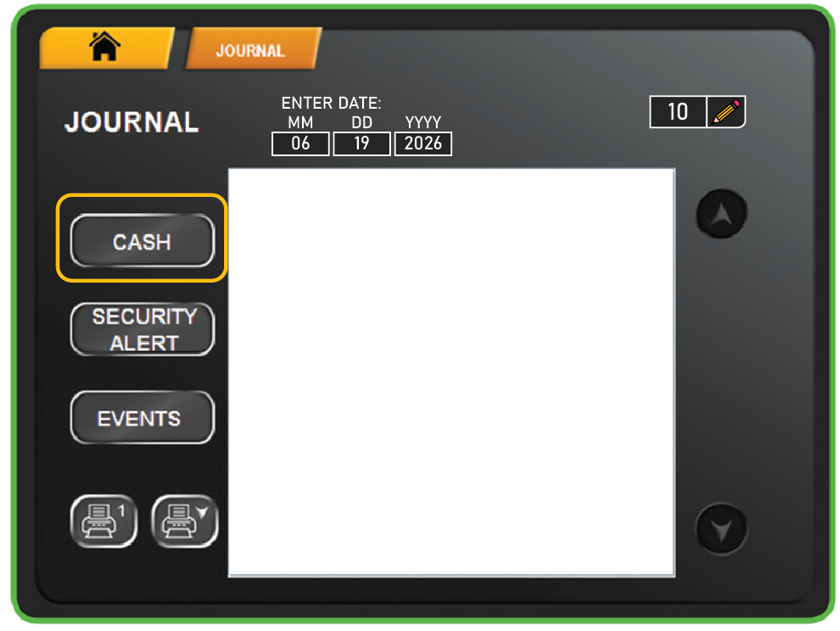
- After pressing the CASH button, the Cash Log will be shown on screen.
- If the retailer chooses to enter a date, the Cash Log shall return all transactions for the day selected.
- If no date is input, the Cash Log shall default to the count option, and the information retrieved shall correspond to the count value in that field.
- Press the Print Button to generate the Cash Log report.
- With the report printed, Retailers can reimburse the player for the transaction and keep the Cash Log for tracking and accounting purposes.
Cash Log Report Overview
For more information on the Cash Log Report:
Identifying an Error on the Cash Log Report
In some situations, the self-service terminal may have a dispensing error. This can occur for various reasons – for example: a ticket gets jammed in a bin roller or stuck when falling to the ticket collection bin at the bottom of the machine.
When an error occurs, the Cash Log report will indicate the dispensing incident with “ERR.
Refunding Players - Credits on Terminal
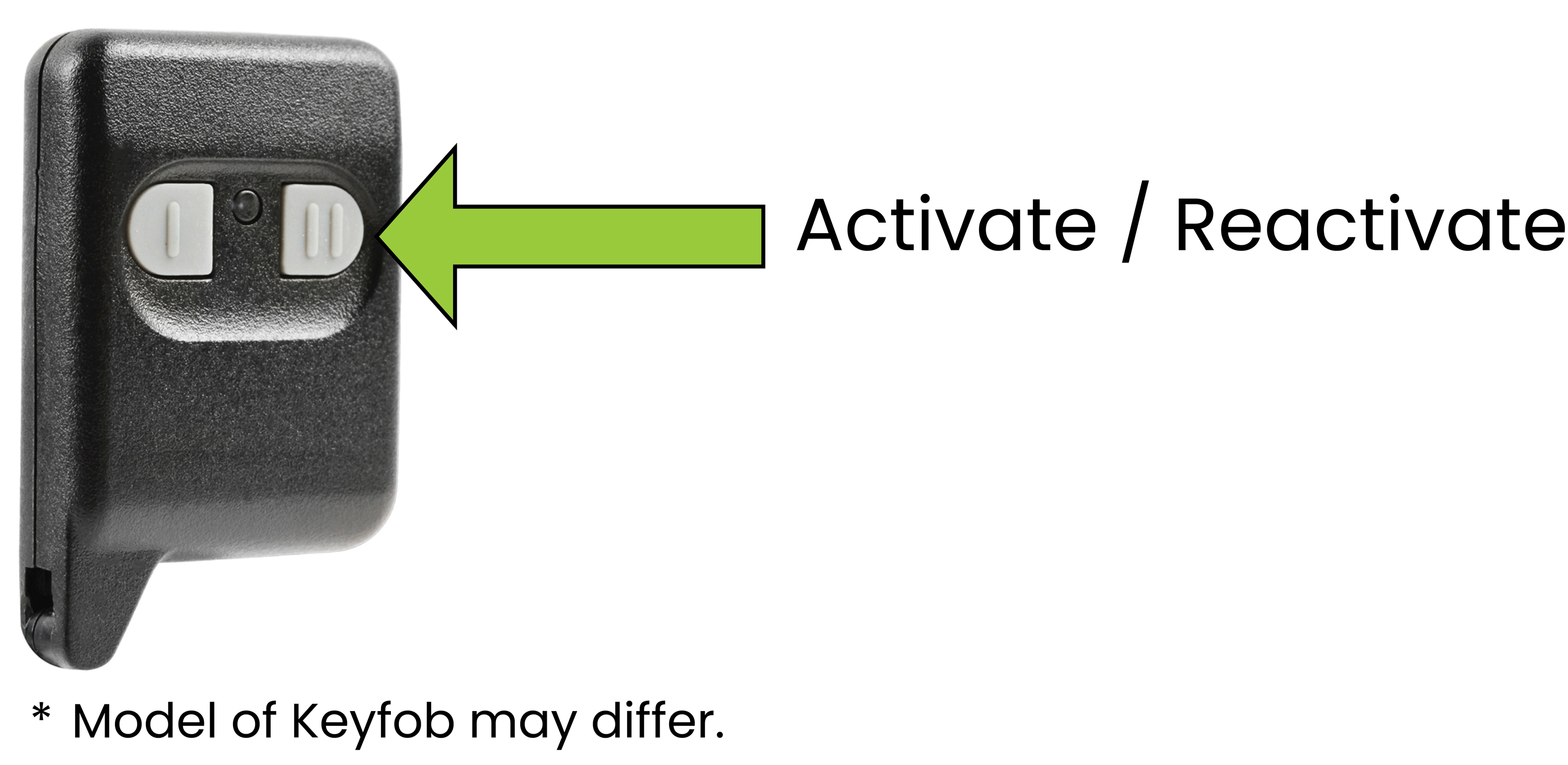
In some situations, a player may need to be reimbursed for credits remaining on the Self-Service Terminals. When this occurs, retailers will use the provided key fob to deactivate and reactivate the lottery vending machine.
Refunding Players and Clearing Credits
-
Using the key fob remote, retailers will press the button to Deactivate the terminal.
Key Fob Remote Page Link -
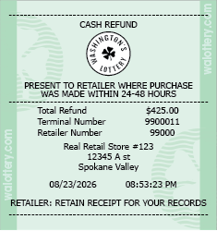
Once the terminal is deactivated with credits remaining on the terminal, a Cash Refund slip will be automatically generated.
-
Please Note: Credits remaining on the terminal is a result of a terminal issue after the player has entered funds without receiving their purchased tickets. Reimbursements of this kind will be made by the retailer directly to the player and not from Washington’s Lottery.
-
As indicated on the Cash Refund slip, retailers must keep the Cash Refund slip for their records when providing any lottery refund.
-
After the refund has been completed, retailers can press the same button on their key fob to reactivate their Self-Service Terminal for sale.